
Use this guide to plan and validate a Cisco Wayfinding launch from Epic MyChart. The Epic request, launch configuration, maps, and production activation are coordinated by your Epic and Cisco implementation teams.
Before you start
Identify the people who will own the work:
-
A customer project owner and MyChart application analyst
-
Your Epic TS and an authorized Epic Vendor Services app requester
-
Your ECSA and security or network reviewers
-
Cisco Spaces Support or your Cisco implementation contact
-
Operations, facilities, and patient education or training leads
Agree on a pilot site, the patient-facing destinations in scope, the intended MyChart launch surface, the non-production and production sequence, and how testing and go-live approval will work. Ask Cisco and Epic to provide the implementation-specific launch values and required domain list.
1. Request the Epic app
-
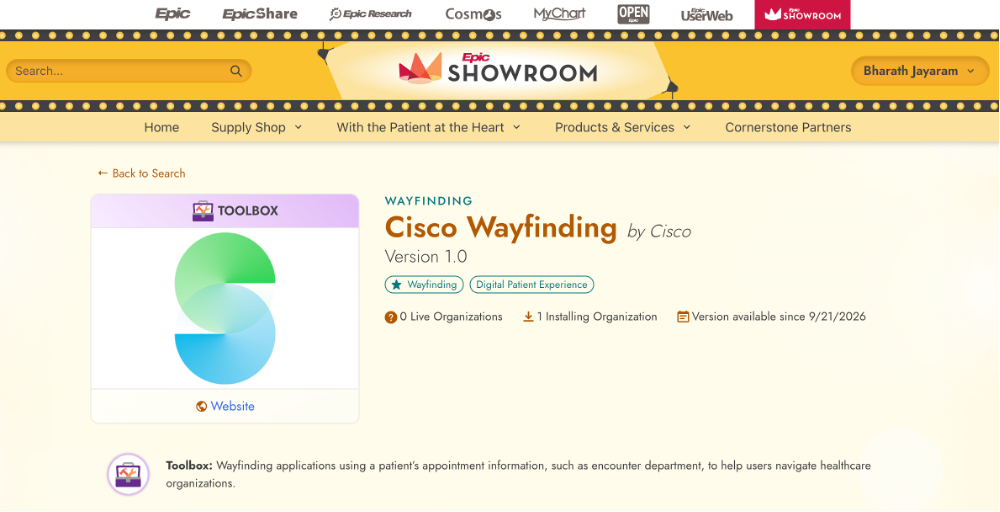
Sign in to Epic Showroom and open the Cisco Wayfinding listing.
-
Review the listing and use the request or download action available to your organization. In Epic Vendor Services, downloading the app enables its client record in an Epic environment; patients do not install a separate Cisco app as part of this step.
-
Have a user with the required Epic app-purchase permission request the client IDs. If the available action is Nominate, route the nomination to an authorized app purchaser.
-
Coordinate with Cisco on non-production activation for testing and production activation after the implementation team agrees that testing and production readiness are complete.
-
With your Epic TS, verify the Cisco Wayfinding client record for the target environment in Epic Record Viewer. Confirm the External ID matches that environment's client ID and the contact status is Active. Keep non-production and production values separate.
Ask your Epic TS about client record synchronization and timing before scheduling the Epic launch build.
2. Hold an implementation kickoff
Use the kickoff to confirm the pilot, owners, milestones, test users, training approach, and cutover plan. Agree on:
-
The Epic app request status and client record for each environment
-
The MyChart launch surface and Epic configuration owner
-
Any connectivity, domain, or allowlist review
-
Cisco app activation, customer and site association, and map profile
-
Pilot buildings, entrances, destinations, restricted areas, and patient instructions
3. Configure the Epic launch
Your Epic TS and MyChart analyst configure the Epic integration (FDI) record and selected MyChart launch surface using the values supplied and validated by Cisco and Epic. The exact record values depend on the implementation.
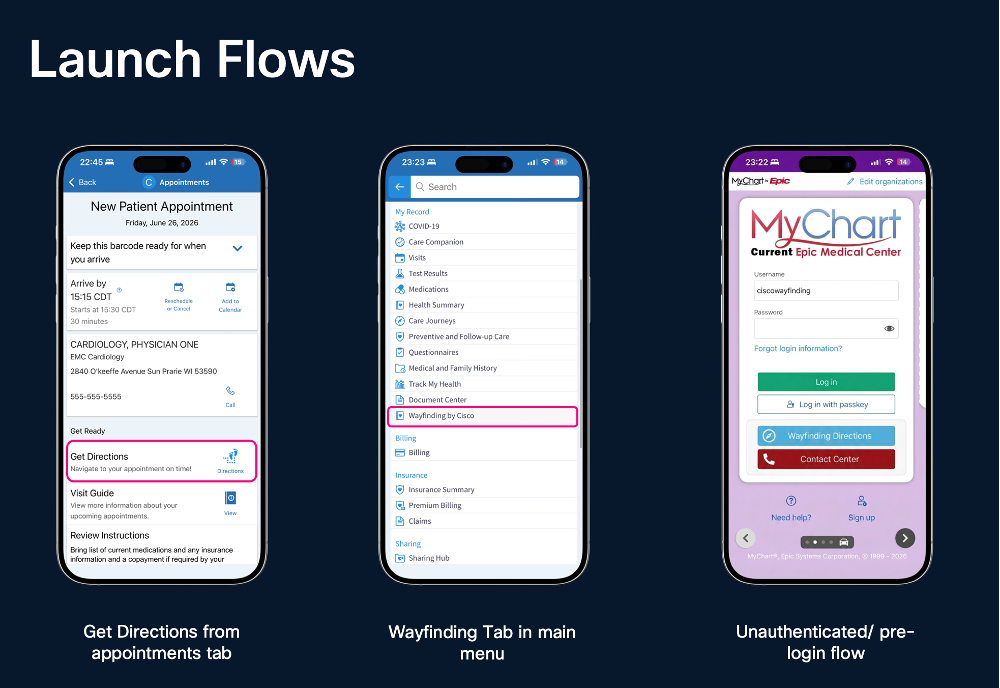
Choose the entry point with your Epic representative:
|
MyChart entry point |
Consider it when |
|---|---|
|
Appointment details |
Patients should see directions with an appointment; the link may use the appointment department as destination context. This is the recommended option in the implementation guide. |
|
MyChart menu |
Patients need access to directions outside a specific appointment. |
|
Pre-login |
Patients need to start navigation before signing in. Coordinate the required pre-login hosts and links with Epic. |
Have the Epic analyst and TS:
-
Obtain Cisco's approved launch URL, environment-specific client ID, authentication details, launch parameters, and complete application domain list.
-
Create or update the FDI record and configure the selected MyChart entry point according to the current Epic guidance.
-
Add required Cisco application and Interconnect domains to the applicable MyChart allowlist. Ask the ECSA or Epic security team to review network allowlisting when used by your organization.
-
Confirm the launch context and how any required patient information is handled with Epic TS and Cisco Spaces Support. Do not put PHI in a URL. Use only the secure context method approved for the implementation.
-
Provide Cisco only the minimum facility and department information required for destination mapping.
Do not reuse non-production URLs, client IDs, or other configuration values in production.
4. Prepare Cisco Spaces maps
Work with Cisco Spaces Support to activate Cisco Wayfinding for the customer and pilot site, and confirm which map and patient profile will be presented from MyChart. Review the mapped buildings, floors, entrances, parking connections, and destinations in scope.
With facilities and patient experience owners, confirm that appointment departments map to the intended destinations, restricted areas are not presented as patient destinations, and accessible routes are appropriate. If blue-dot positioning is part of the experience, agree on its behavior when positioning is unavailable or a patient declines permission.
For Cisco Spaces map prerequisites and indoor navigation deployment details, see the Cisco Spaces Indoor Navigation Runbook (Cisco Validated).
5. Validate in non-production
Complete end-to-end testing with the MyChart analyst, Epic TS, and Cisco before production activation. Use approved test data and verify:
-
The Wayfinding link appears on the intended MyChart surface for the intended appointments or users.
-
The non-production client ID and launch URL are used and the correct Cisco customer and site load.
-
Appointment department or selected destination opens the expected map and route.
-
Routes work across the pilot buildings and floors, including step-free routes and patient-visible destination rules.
-
Missing or unmapped launch context and unavailable location or Bluetooth capability have a clear fallback.
-
PHI is not placed in a URL or routine support diagnostics.
-
The customer, Epic TS, and Cisco agree that the results meet the pilot acceptance criteria.
Record issues, owners, and retest results. Resolve production-blocking issues before requesting production activation.
6. Prepare production cutover
Before go-live:
-
Have Cisco enable production after non-production validation and confirm production launch values, site setup, maps, and destination mappings.
-
Have the Epic app requester or TS verify that the production client record is present and active with the production client ID.
-
Have the MyChart analyst promote the tested Epic build, substitute production values, and verify browser allowlists and links for the applicable iOS, Android, and web experiences.
-
Have the ECSA or security owner promote or verify production Interconnect and network configuration.
-
Schedule production connectivity testing, confirm patient education and support escalation, and record go-live approval from the customer, Epic, and Cisco owners.
Epic's implementation guidance recommends considering production migration and connectivity testing at least one week before cutover. Confirm timing with your Epic TS and local change-control process.
7. Maintain the integration
Retest in non-production before major Epic upgrades or Cisco Wayfinding releases. Review user feedback, connectivity issues, and map or destination changes with Cisco and your Epic TS. Use the Epic Patient Audit Trail if your organization needs to audit app API access to patient charts.
Troubleshooting
|
Symptom |
Checks |
|---|---|
|
The Wayfinding link is missing |
Confirm the selected MyChart surface, appointment or user criteria, Epic build, and client record with the MyChart analyst and Epic TS. |
|
The wrong map or destination opens |
Confirm the customer/site association, appointment department or selected destination, and department-to-destination mapping with Cisco Spaces Support. |
|
Launch fails in one environment |
Check that the client ID, URL, authentication settings, and allowlists belong to that environment. Ask the Epic TS to confirm the client record is active. |
|
Routes or floors are incorrect |
Review the mapped buildings, floors, entrances, patient-visible destinations, and accessible routes with facilities and Cisco. |
|
Positioning is unavailable |
Confirm whether blue-dot positioning is enabled and review the agreed fallback when location or Bluetooth is unavailable or permission is declined. |
For Epic request workflow or synchronization questions, contact your Epic TS or Epic Vendor Services. For customer-specific activation, launch configuration, maps, or destination mapping, contact Cisco Spaces Support or your Cisco implementation contact.
Frequently asked questions
Do patients need to download a separate Cisco app?
No separate Cisco app installation is part of the Epic Vendor Services app download step. That step enables the Epic app client record in the Epic environment.
Can the Epic launch use appointment information?
The Epic Wayfinding guidance describes passing appointment context, such as the department id from DEP File, to a wayfinding application. Confirm the context and configuration for your implementation with your Epic TS and Cisco.
What should be used in production?
Use the production client record and the production launch values confirmed by Epic and Cisco. Do not carry non-production values into the production build.