OVERVIEW
The Captive Portal Multi-Auth feature is introduced to address the diverse authentication needs of guest Wi-Fi environments that serve mixed visitor populations. This enhancement allows administrators to configure multiple authentication methods within a single captive portal, providing greater flexibility and convenience for end users. By enabling a primary authentication method alongside alternate options such as Access Code, Social Sign-In, SMS with link verification, or SMS with password verification, organizations can tailor the onboarding experience to different visitor types—such as VIPs, contractors, or casual guests—within the same portal.
Additionally, the Data Capture workflow has been enhanced to support configurable custom form fields, allowing businesses to collect specific visitor information beyond standard onboarding data. This update improves the customization and effectiveness of visitor data collection to meet unique business requirements.
Overall, Captive Portal Multi-Auth simplifies guest access management by consolidating multiple authentication paths into one portal, enhancing user experience while maintaining secure and controlled internet access.
FUNCTIONALITY
Captive Portal Multi-Auth
Captive Portal now supports configuring alternate authentication methods in addition to a primary authentication method. In the portal creation wizard, the Authentication step includes Primary Authentication and Alternate authentication tabs. Admins can configure supported alternate methods such as Access Code, Social Sign-In, SMS with link verification, or SMS with password verification.
Custom fields in Data Capture
The Data Capture step now supports configurable custom form field tailored to specific business requirements.
What problem does it solve?
Many guest Wi-Fi environments serve mixed visitor populations. A retail store may want most visitors to sign in with email or SMS, but also give VIPs, contractors, or event staff an access code. A hotel may prefer SMS verification for guests but offer social sign-in for casual visitors.
Organizations frequently need to collect business-specific visitor data that extends beyond standard onboarding information. Existing captive portal workflows offered predefined field structures, limiting customization for data capture.
What does the feature do?
Captive Portal Multi-Auth adds a two-part authentication configuration model:
-
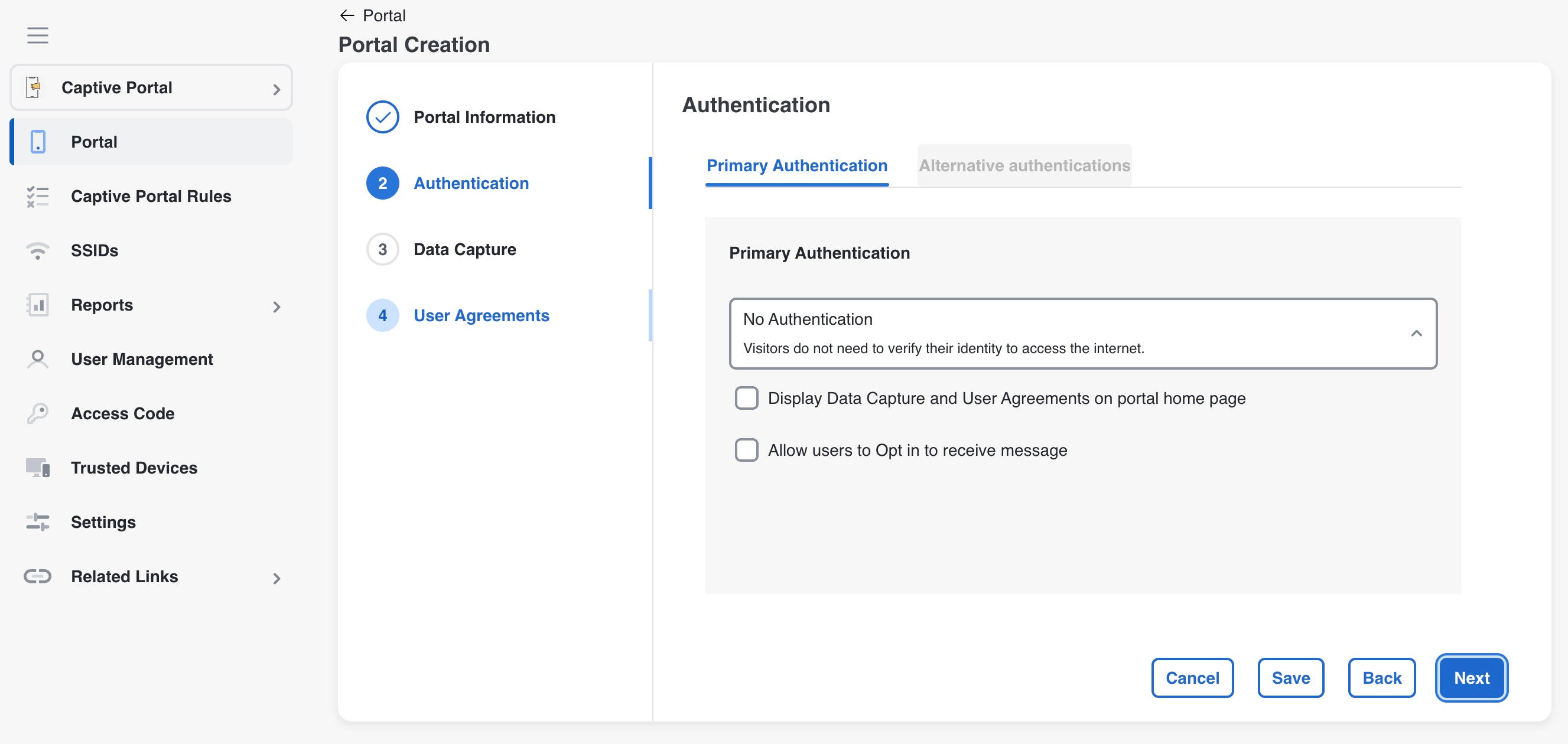
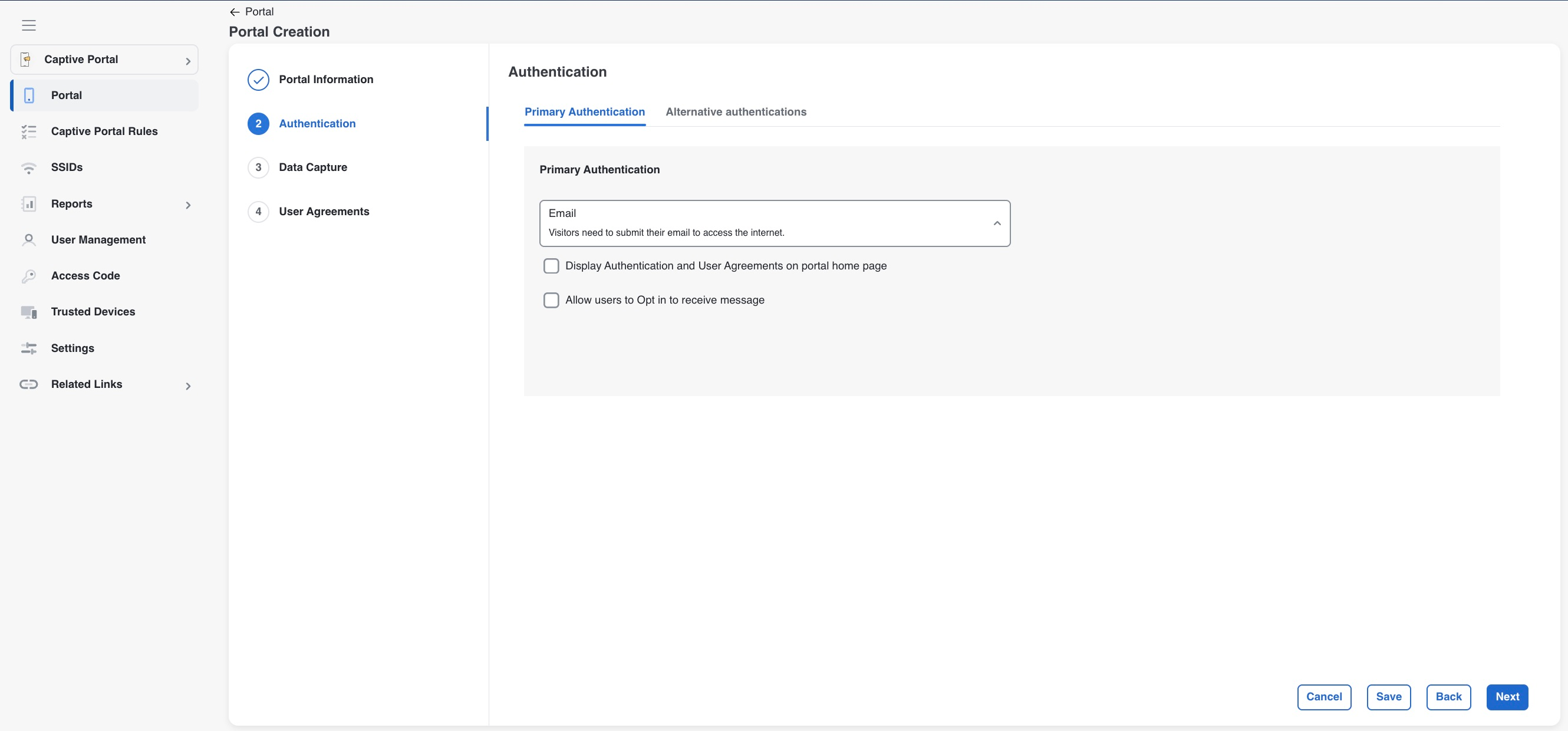
Primary Authentication
This allows the admin to select the default authentication method that will be presented to end users when the Captive portal is rendered for them.
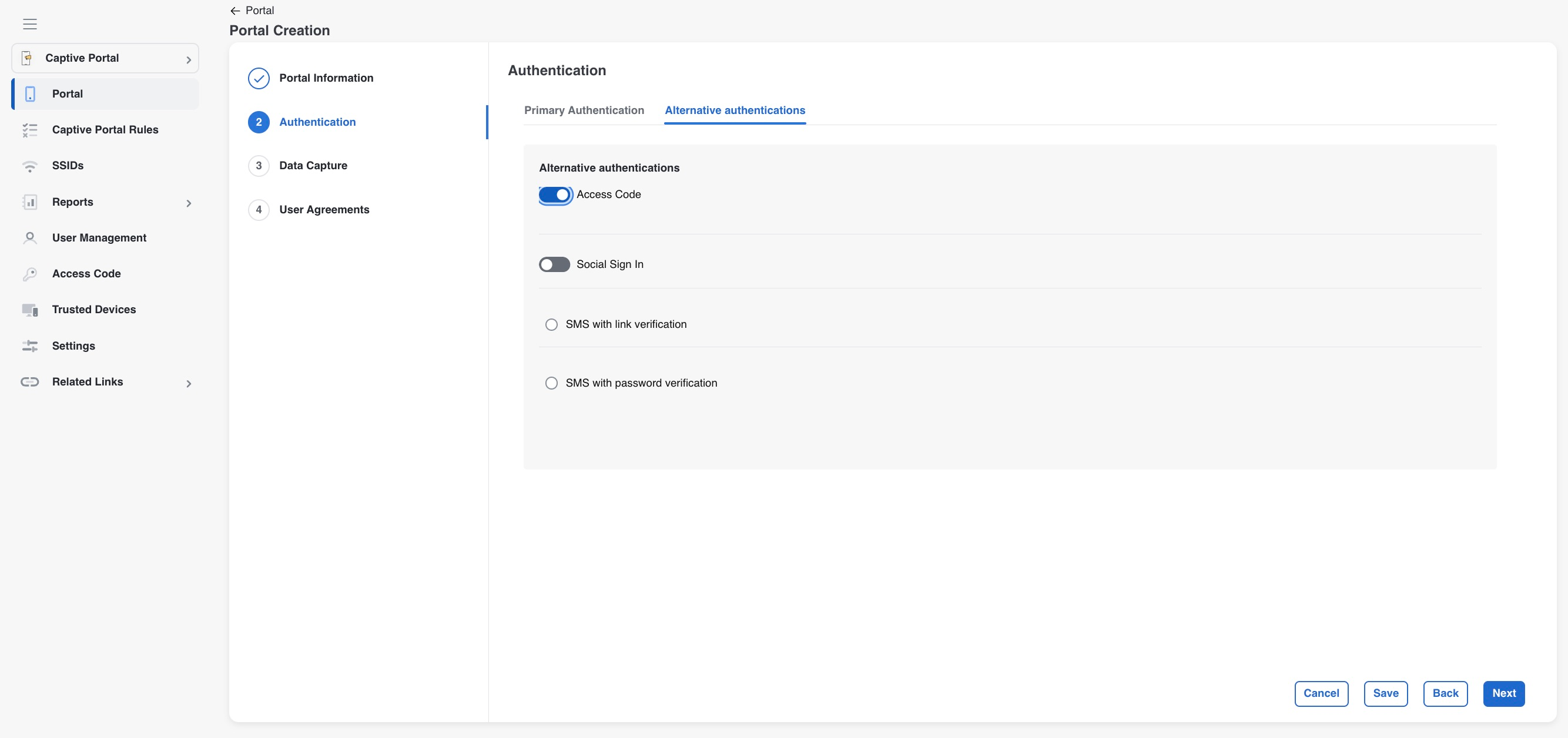
Alternate Authentication
If Primary Authentication is set to anything other than No Authentication, admins can add alternate methods. All authentication methods available in Spaces including Access Code, Social Sign-In, SMS with link verification, and SMS with password verification are available as alternate options. Social Sign-In can include Facebook, Twitter, and LinkedIn.
This update does not introduce new authentication methods.
The Data Capture workflow now supports configurable custom form fields. Admins can add custom fields while enabling Data Capture . Custom fields can be configured with field labels, placeholders, mandatory validation, and selectable options depending on the field type.
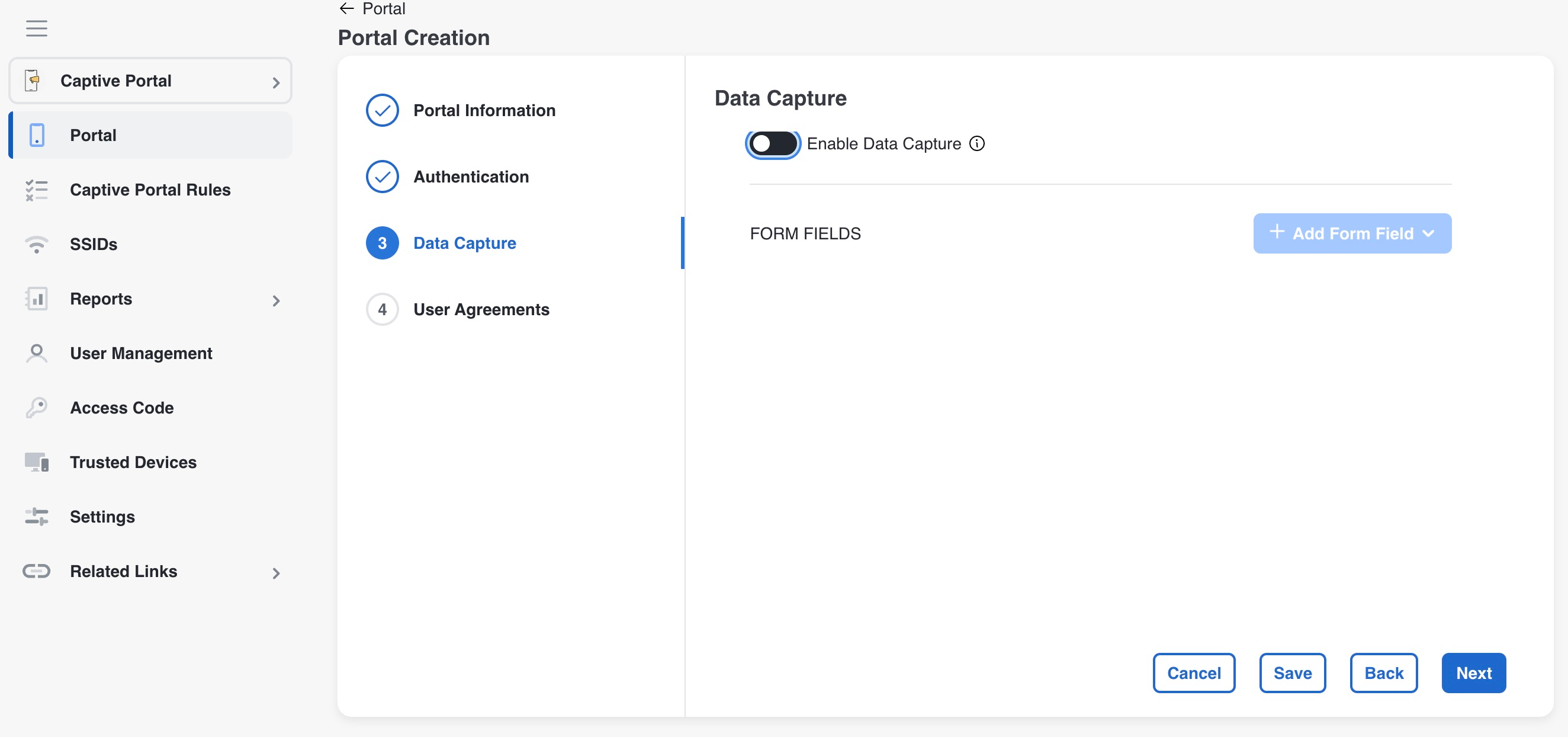
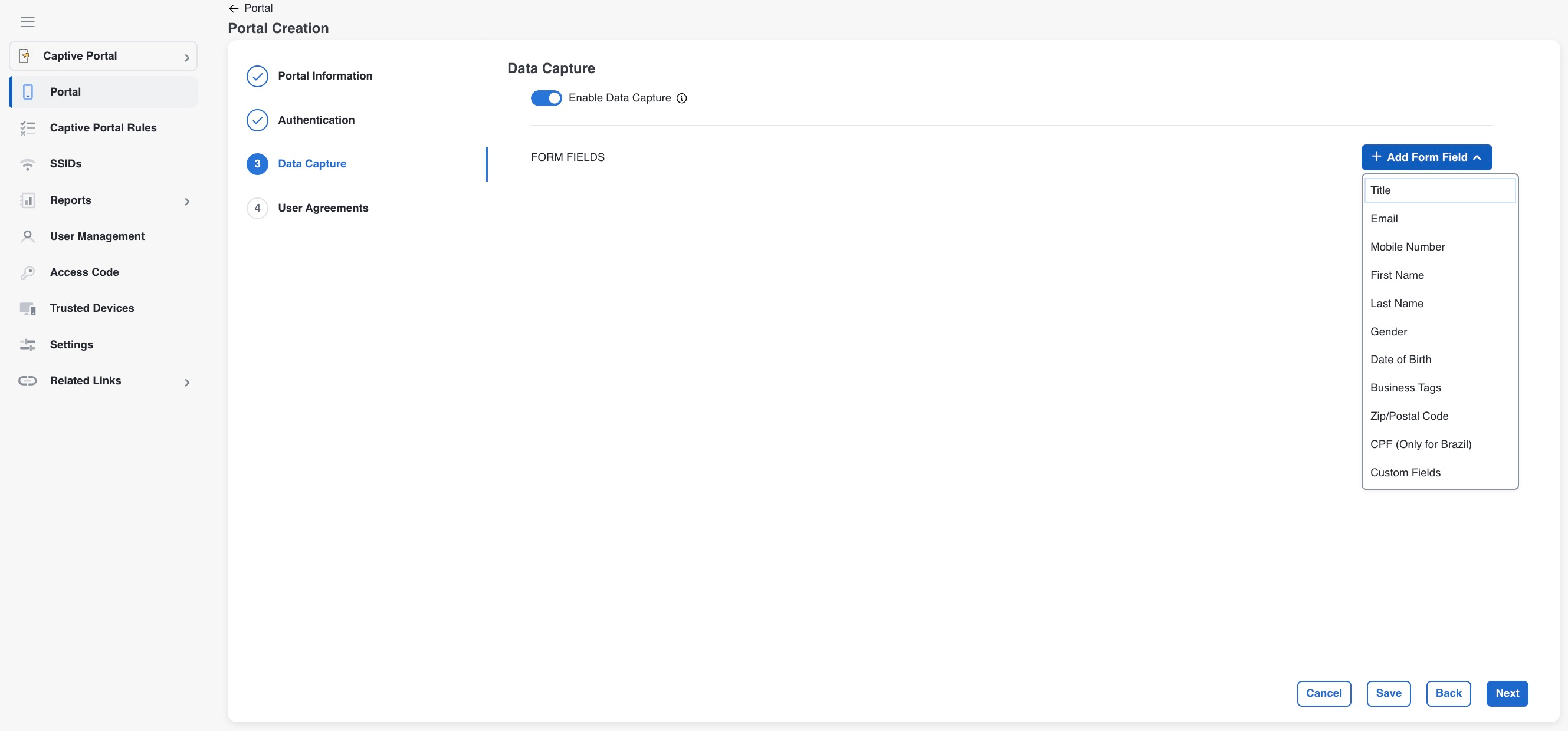
Dashboard changes: before and after
The newer version of the workflow will be replacing the previous version of the workflow.
|
Area |
Before Launch |
After Launch |
|---|---|---|
|
Authentication setup |
Portal creation uses an Authentication Type drop-down where the admin chooses the authentication type for the portal |
Portal creation shows an Authentication step with Primary Authentication and Alternate authentications tabs. |
|
No Authentication behaviour |
No Authentication is one of the available authentication types. |
If No Authentication is selected as the primary method, user will not be able to add any alternative authentication method |
|
Social Sign-In |
Social Sign-In can be configured with supported social networks such as Facebook, Twitter, and LinkedIn. |
Social Sign-In remains available, and the alternate-auth flow allows Facebook, Twitter, and LinkedIn options. |
|
Additional Data Capture |
After selecting authentication details, admins move to Data Capture and add fields with +Add Field Element. |
Data Capture remains a separate step after authentication, with Enable Data Capture and +Add Form Field in the updated wizard. |
|
Custom fields |
Limited predefined form fields |
Support for Plain Text, Dropdown, Check Box, Radio Button, and Date Picker custom fields |
|
Data Capture |
Basic form field support |
Expanded configurable Data Capture with custom fields |
End-user experience of connecting to a Captive Portal
Visitors continue to connect to the SSID and land on the captive portal. The difference is that the portal can now support more than one authentication path. A visitor can complete the method that applies to them, such as SMS, access code, or social sign-in, and then proceed with the existing internet provisioning flow. The underlying captive portal behavior remains consistent: after the required authentication steps are completed, Cisco Spaces provisions internet access
If Custom Data Capture fields are enabled, visitors may also be prompted to complete organization-defined custom fields before internet provisioning occurs
Compatibility of Existing portals
Existing portals will continue to work with no change in behavior. Portals created prior to the launch date will not support multiple authentication. These legacy portals may be copied or imported but clones of exiting portals would not support multiple authentication methods.
FAQs
Q: Does Multi-Auth add new authentication types?
No. It allows admins to combine existing captive portal authentication options in a single portal.
Q: Can I use both SMS with link verification and SMS with password verification as alternates?
No. Only one SMS option can be selected at a time.
Q: Can I use alternate authentication when the primary method is No Authentication?
The alternate authentication window is disabled when Primary Authentication is set to No Authentication.
Q: Can I view or modify multi-auth portals in the previous version of the dashboard?
Portals create with Multi-Auth Capability are only supported in the latest version of the dashboard. They will not be viewable or editable in the previous versions of the dashboard.
Q: Can I make custom fields mandatory?
Yes. Custom fields support mandatory validation using the “Make this field mandatory” option.