
An easy and effective way to get an RF Predictive Design in just a few seconds
OVERVIEW
The goal of this exercise is to demonstrate the steps on how easy and quickly partners and customers can export their Catalyst Center hierarchy, building(s) and existing access points (APs) into an Ekahau RF predictive file. The Ekahau(.esx) file generated by your Catalyst Center is intended to be used by the Cisco Spaces team for DDM validation purposes. Leveraging this approach, customers and partners can save significant amount of time and effort instead of creating RF predictive designs from scratch.
Before getting into the steps-by-step criteria, we want to highlight a few points on why this is important going forward. Additionally, we have a DDM FAQ that will clarify any questions you may have regarding the Spaces DDM Validation process:
Why are we doing this?
· We know that creating RF predictive survey projects from scratch can be time consuming so Cisco in partnership with Ekahau have created a quick and straight forward approach to export your current hierarchy, building(s), floorplan(s) and AP placements with its key characteristics into an esx format.
What is the purpose on getting an Ekahau file with your floorplans & AP Placements?
· As part of the DDM validation process conducted by the Spaces BE team, getting an RF predictive design will allow us to have a baseline reference to assess, validate and provide you with a detailed course of action to ensure your workspace is capable to support high precision outcomes, e.g indoor navigation/wayfinding, asset tracking, occupancy by zone level and much more.
Customer/Partner have gone through an RF validation survey onsite already. Can I provide those files to start the DDM validation process?
· DDM validation is focused on assessing and validating BLE and UWB propagation characteristics along with our Cisco validated guidelines to ensure your workspace is ready to accurately unlock high precision Spaces outcomes. As up to date, the only way to start designing and validating for BLE and UWB is via an RF predictive design. An RF validation survey will provide Wi-Fi data along with the L1 spectrum sweeps collected from the physical space.
Are there any benefits in providing RF predictive designs for DDM validation?
· Absolutely. Besides saving significant amount of time and effort on creating RF validation projects from scratch, it will give the Spaces BE team a realistic view of the AP density and physical position of each single AP/Antenna which are key for the analysis. Aside of that, it will help on expediting the analysis and validation time that the Spaces BE team require to come back with final recommendations and next steps.
SUPPORT AND ONBOARDING
Please follow the link below to find out about the different ways to get support for Cisco Spaces.
PREREQUISITES
Customer should have Cisco Catalyst Center (formerly Cisco DNA Center) deployed with a hierarchy define, building(s), accurate floorplans and access points (APs) properly placed on the maps.
-
Floorplans should reflect accurate AP placement, ceiling height and AP model(s). As an example:
-
Cisco Catalyst CW9178 Series APs at 12ft ceiling height
-
Cisco Catalyst C9130AXE Series with AIR-ANT2513-P4M-N antennas at 25ft height with the right Azimuth and Elevation angles.
Recommended versions:
-
Cisco Catalyst Center (physical or virtual appliance): 2.3.7.9 and higher
-
Ekahau AI Pro: 11.8.8.1 and higher
Note: Catalyst Center version 2.3.7.x and Ekahau AI Pro 11.8.x already include/support the latest Cisco Wi-Fi 7 portfolio introduced recently e.g CW9171, CW9172i, CW9174i/e, CW9176, CW9178 and CW9179F. For further details, please refer to the Cisco Catalyst Center Compatibility Matrix and the Ekahau AI release notes and change log of APs and antennas
HOW TO EXPORT
Export your Catalyst Center Hierarchy into an Ekahau file
-
Log into your Catalyst Center and navigate to your upper left pane:
-
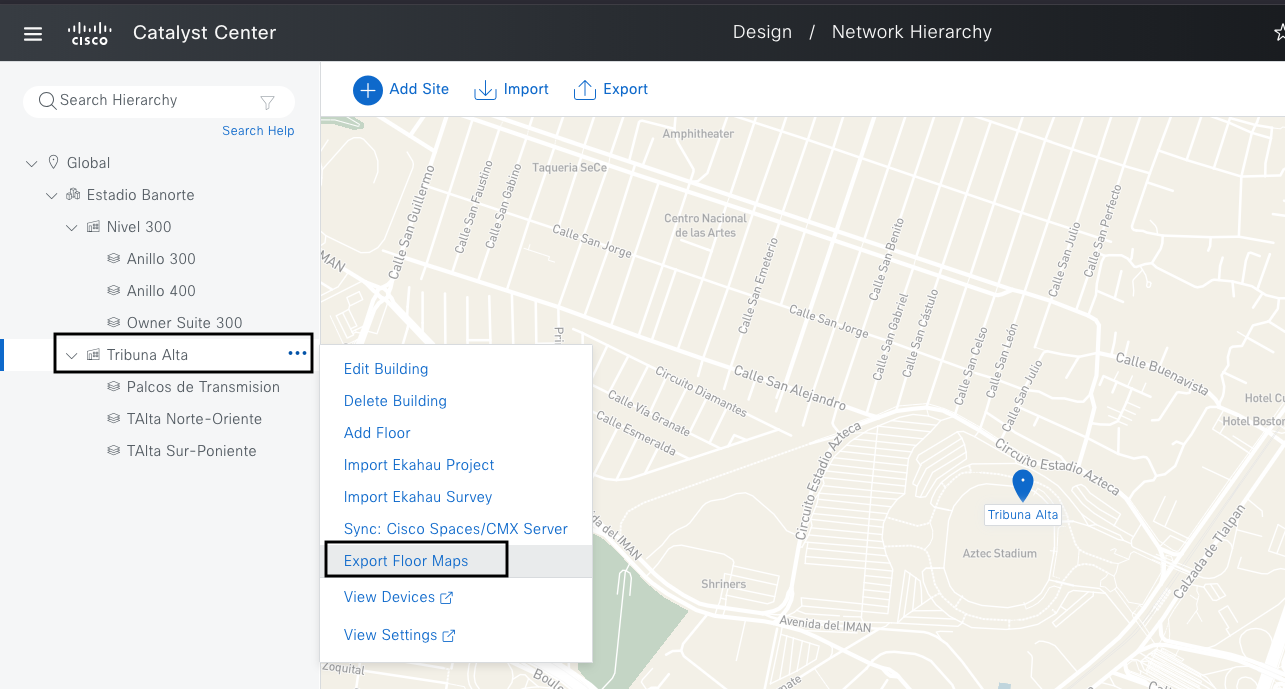
Design>Network Hierarchy and select the location(s)/building and specific floors that need to be exported as an Ekahau file.
-
In this example, all of the floors under the “Tribuna Alta” building are the ones that need to be exported, the rest of the building/floors are not required currently.
-
Next to my building “Tribuna Alta” hover your mouse to the three dots on the right- hand side and select “Export Floor Maps”:
-
As you are selecting the whole building, the export will implicitly include all the floors within that building/location. In this case, the exported file will have three different floors, as highlighted in the image above.
Note: If your intended goal is to include the whole area with its respective buildings and floors, you can instead select your area/parent location and export all of them. That will include everything under that parent location. For further details related to the hierarchy, areas and buildings, please check the following reference
-
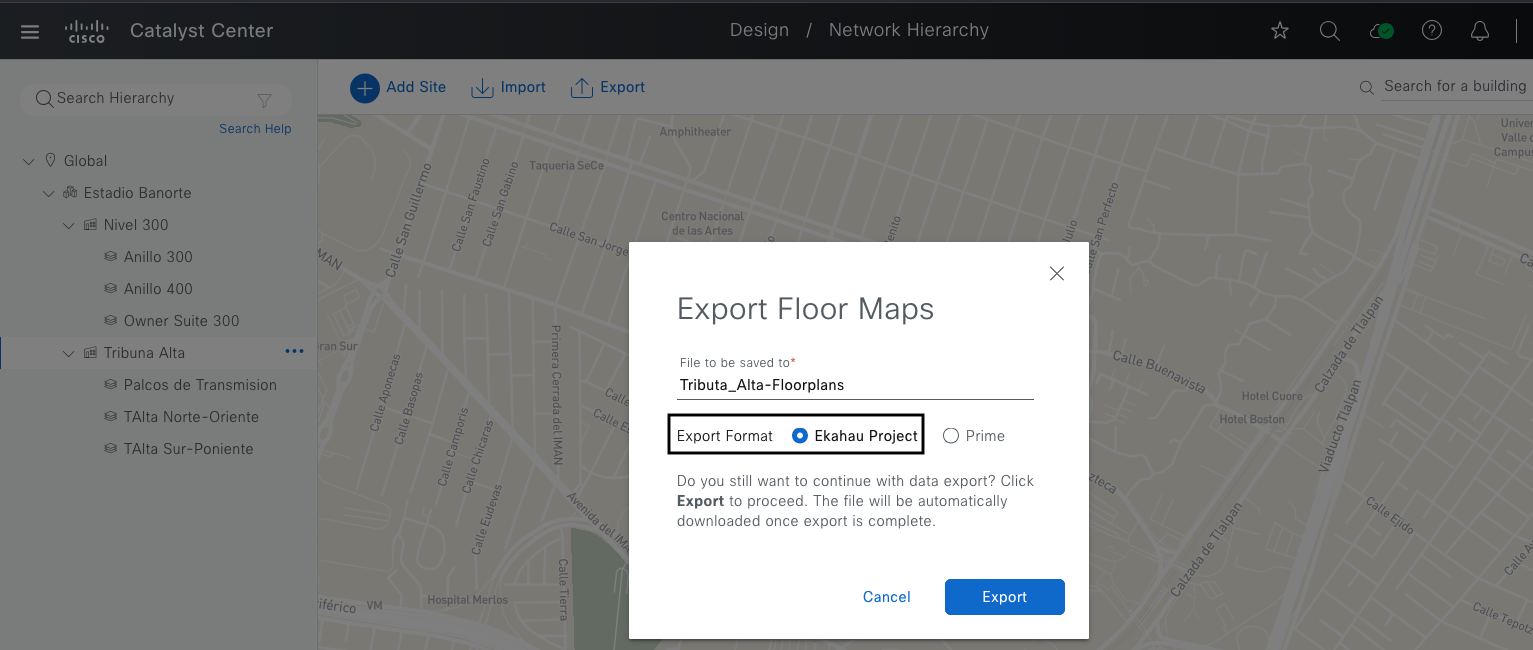
Make sure to name your file with an intuitive identifier that refers to the location and explicitly select “Ekahau Project” export format:
-
That will generate and download an .esx file to your desktop.
-
The esx project generated by Catalyst Center will be used by the Cisco Spaces BE team to initially review and validate whether your environment has the right AP density and strategic AP placement to unlock high precision outcomes.
The Cisco Spaces team have created an easy way for you to share your Ekahau files. Once the project is uploaded and submitted, our Spaces BE team will get a notification about this project.
Does Cisco have a way to share Ekahau files besides e-mail?
The Cisco Spaces team has created an intuitive way for customers and partners that have purchased DDM to upload and share the projects with the Cisco team.
-
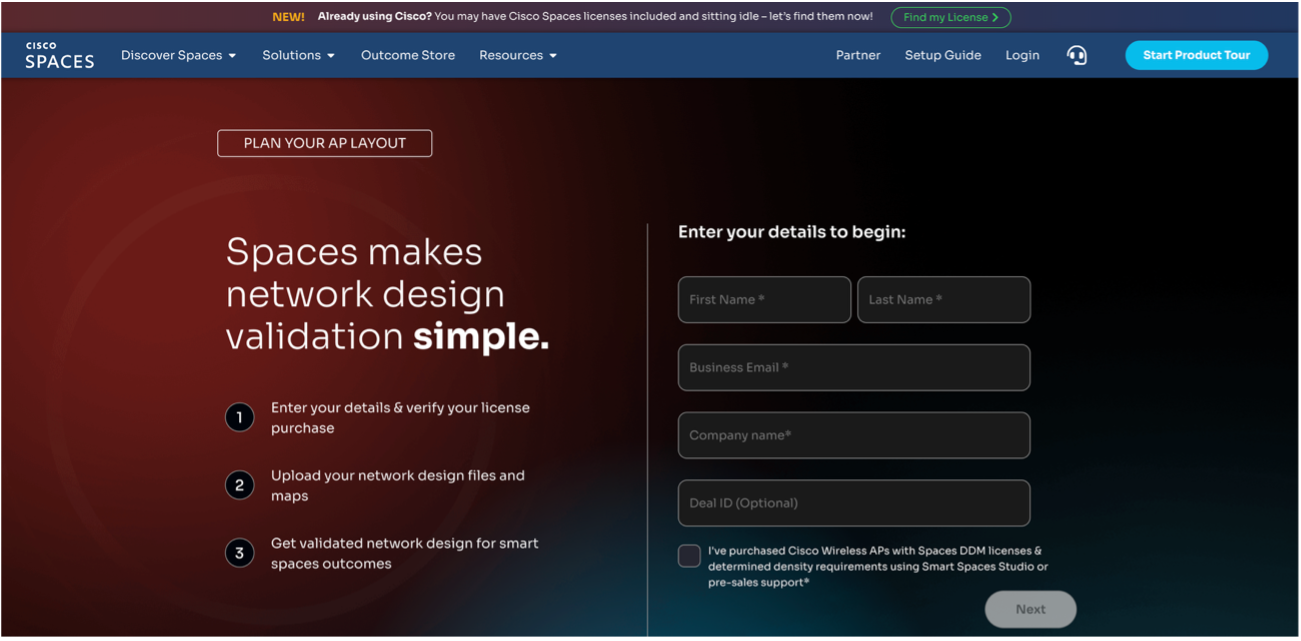
Navigate to the Cisco Spaces DDM site
-
Fill the information requested and Deal ID whenever possible. You should comply with the “terms and conditions” highlighted and click next.
-
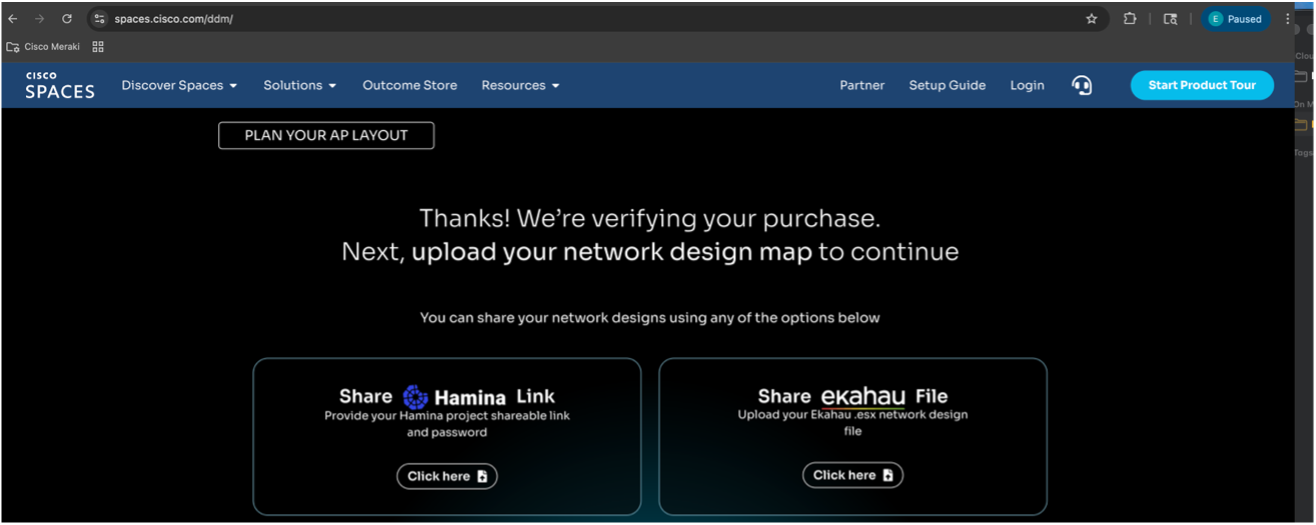
Proceed to upload your Ekahau (.esx) file(s) and submit.
Note: You can upload multiple projects in one shot. Typically, RF Predictive designs are more compact in terms of file size (MB) vs other forms of RF surveys that tend to exceed ~100MBs
-
Once the Ekahau project is submitted, you will get a notification email stating that the project was successfully received by Cisco. In parallel, the Cisco team will have your information/projects already in the queue to proceed with the DDM analysis and validation.
-
Here is an example of the project that was received by the Cisco Spaces BE team. It has all the prerequisites needed to formally start with the Spaces DDM validation exercise:
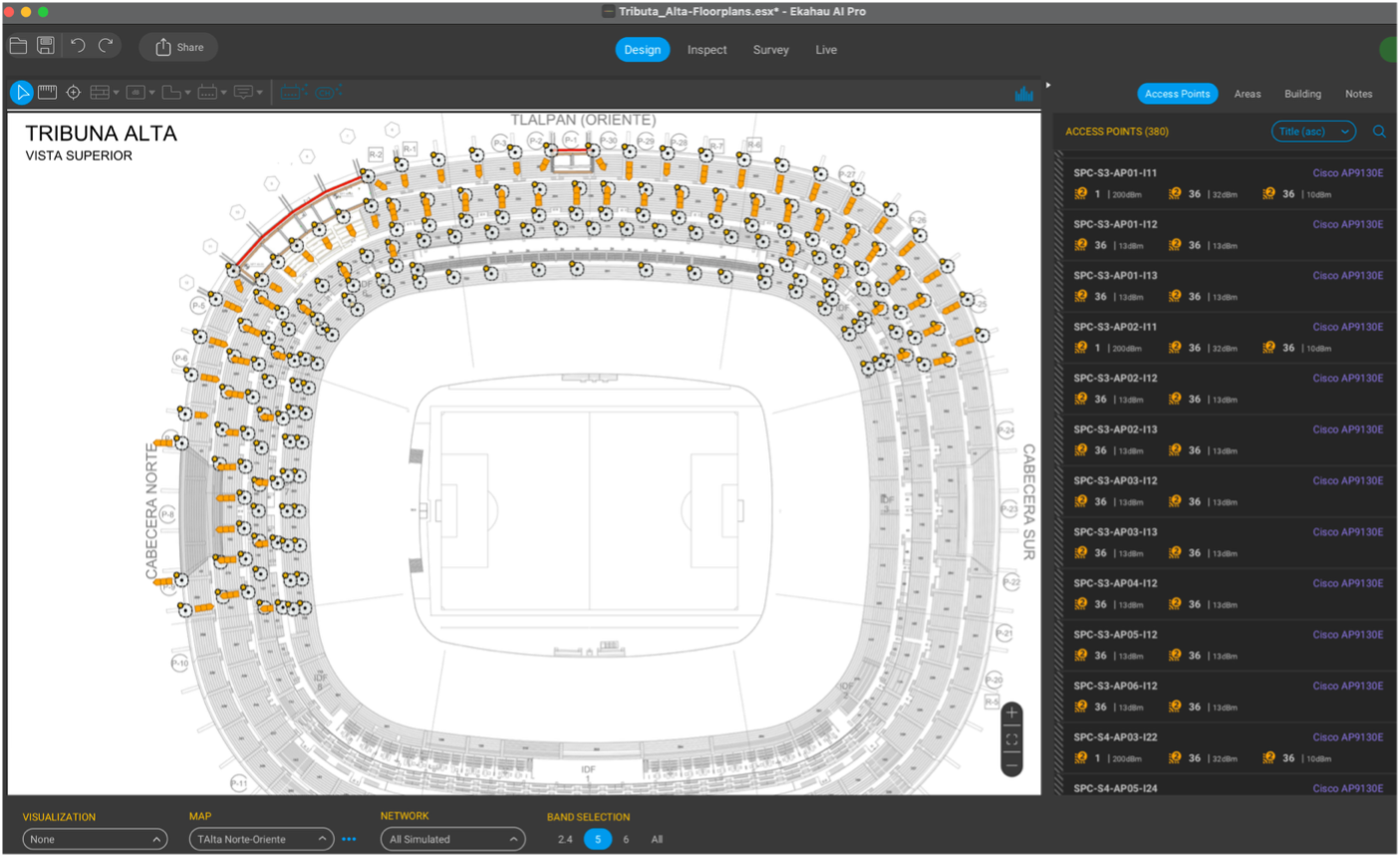
Besides having the floor plans with accurate AP placements, heights, AP model/antennas and type of materials bundled into a .esx file, the example above is already an Ekahau RF predictive design that will be used as part of the DDM validation process. The final goal is to assess, design and validate AP density and strategic placement needed to future-proof your workspace to support high precision outcomes e.g Indoor navigation/wayfinding, asset tracking, occupancy, etc.