OVERVIEW
This document provides a comprehensive guide to deploying the Infant Protection Solution integrated with Securitas Healthcare. This integrated solution enhances infant safety through real-time location tracking, tamper detection, and automated alerts managed via the hospital’s security and clinical workflows.
The Infant Protection Solution ensures advanced and scalable security coverage for infants within a specific department or across the hospital campus. Each infant wears a Hugs tag attached to the ankle and automatically enrolls into the system. Once enrolled, infants are continuously monitored across all areas with Cisco wireless coverage. This use case extends to NICU infants and pediatric patients in open-crib stages.
In the system requirements section, this document outlines the supported Cisco Spaces and Securitas Healthcare versions, recommended configurations, and hardware requirements for optimal performance. It also provides network specifications and best practices to ensure successful deployment.
This document focuses on the implementation utilizing Wi-Fi-based Hugs tags for infant monitoring. While the underlying Cisco Spaces platform and Securitas Healthcare infrastructure can process both Wi-Fi and Bluetooth Low Energy (BLE) telemetry, all specific configuration steps, guidance, and examples within this document are tailored solely for the Hugs Wi-Fi tag implementation.
The solution has achieved ATO (Authority to Operate) certification, ensuring its compliance with stringent security and operational standards.
TARGET AUDIENCE
This runbook is designed for
-
Hospital IT Administrators responsible for infrastructure deployment and integration
-
Clinical Engineering Teams managing medical device integration and support
-
Security Operations Personnel monitoring alerts and coordinating incident response
-
Partners deploying healthcare solutions for hospital customers
-
Facility Managers overseeing campus-wide safety initiatives
HOW IT WORKS
The Infant Monitoring solution leverages Wi-Fi based Real-Time Location Systems (RTLS) technology for comprehensive infant safety management. It combines Cisco Spaces Infrastructure with Securitas Healthcare Infrastructure to track and protect infants in real time.
Hugs Tags and Band
The Hugs tag contains a small Wi-Fi transmitter that responds to tamper detection through the band, that is enabled as soon as the tag is applied to the infant. Once applied, the tag emits a signal and is automatically enrolled into the system. From this time forward, the system constantly monitors the tag. If the tag is not seen by the system for a certain period of time, an alert is generated in the system.
Exit Protection
Exits, including elevators, are monitored using Exit Controllers. If an infant tag nears an active exit and the door is open, an alarm triggers. Exit Controllers can activate door locks to prevent egress, while authorized staff can bypass via keypad or access control integration.
LF Interference Alert
If the tag’s ability to detect LF signals near exits is compromised, the system generates an LF interference alert to proactively notify staff. The solution also includes LF interference avoidance capabilities that actively prevent interference issues before they impact system performance.
Tamper Detection
The Hugs tag includes a tamper sensor that immediately triggers an alarm if the ankle band is cut or detached. Because Hugs tags are Wi-Fi-enabled, tamper alarms work anywhere with Cisco wireless coverage.
Continual Supervision
Each tag transmits telemetry at regular intervals. The system monitors missing tag messages and triggers an alarm if communication ceases (configurable, typically within one minute). Continuous Wi-Fi coverage ensures infants are protected during transport or testing.
Out-of-Unit Alert
If an infant is detected outside the Obstetrics or NICU unit without a logged staff transport, an “Out-of-Unit” alert triggers, ensuring visibility beyond exit boundaries.
SOLUTION COMPONENTS
Cisco Hardware Components
|
Device |
Function |
Recommended Versions |
Quantity Guidance |
Notes |
|---|---|---|---|---|
|
Cisco Catalyst Access Points |
Scans for Wi-Fi signals from Hugs Tags |
Wi-Fi 6/6E/7 |
1 AP per 2500 sq ft for high-density coverage |
Any Indoor APs supported by Catalyst WLC image |
|
Cisco Aironet WLC |
Scans for Wi-Fi signals from Hugs Tags |
8.10.x or latest version
|
Per campus architecture |
Legacy support only, not recommended for new deployments |
|
Cisco Catalyst WLC |
Manages Catalyst AP’s, aggregates telemetry |
IOS-XE 17.15 or above
|
Per campus architecture |
Required for modern Wi-Fi 6/6E deployments
|
Cisco Software Components
|
Application |
Function |
Version |
Notes |
|---|---|---|---|
|
Cisco Spaces Connector |
Gathers data from controller and AP and sends data to Spaces Cloud |
|
Active/Active HA supported; minimum 8 vCPU, 16GB RAM, 500GB storage.
|
|
Cisco Spaces Dashboard |
Cloud-based portal for Cisco Spaces services and applications |
|
|
|
Securitas Healthcare RTLS Partner App |
Consumes Cisco Spaces location and event data to enable infant monitoring, staff safety, and RTLS workflows within the Securitas Healthcare solution |
Latest version on App Center |
Activate via Cisco Spaces Dashboard → Partner Apps |
|
Local Firehose Service |
Streams real-time raw location and event data from Cisco Spaces to on-prem applications |
Latest |
Added via Cisco Spaces Dashboard |
Securitas Healthcare Device Components
|
Device |
Image |
Function |
Version |
Quantity Guidance |
Notes |
|---|---|---|---|---|---|
|
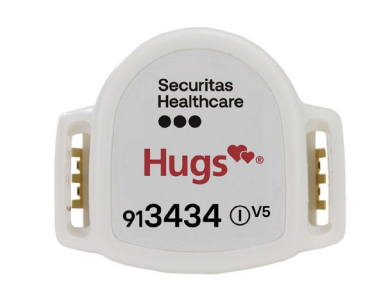
Hugs Wi-Fi Tag |
|
Wi-Fi–enabled infant tag that transmits location and alarm events to the Hugs system |
902.39 and above |
1 per infant |
Wi-Fi transmitter that responds to tamper detection through the Hugs Tag Band |
|
Hugs Tag Band |

|
Infant ankle band that provides secure attachment, tamper detection, and LF exit sensing when used with exciters |
|
1 per infant |
Infant ankle tag with tamper detection and LF exit sensing |
|
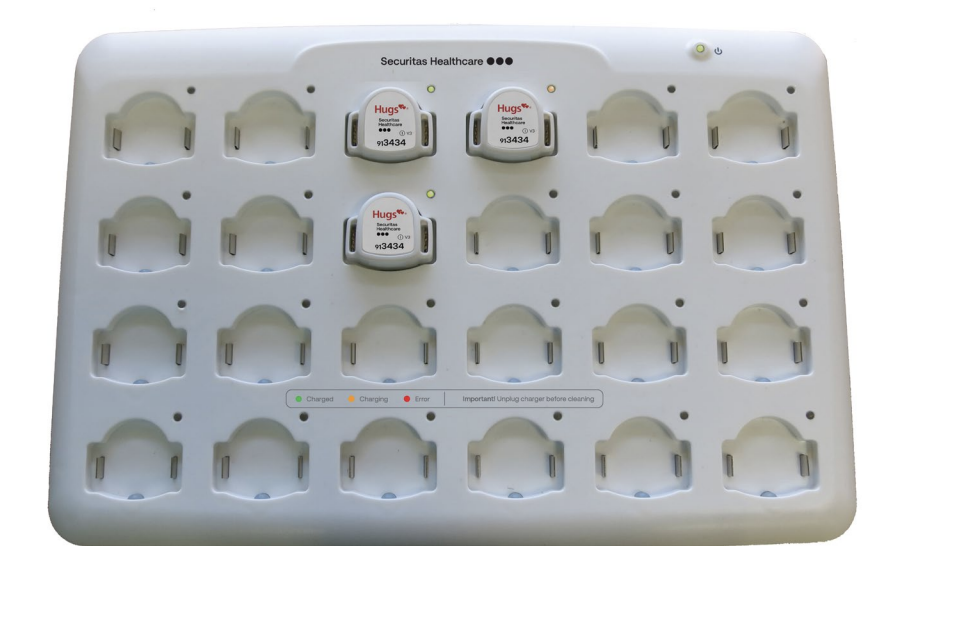
Hugs Tag Charger |
|
Charging station for Hugs Wi-Fi Tags |
1.3 and above |
1 charger supports charging of 24 tags simultaneously |
Fully charged tags can work 8-10 days |
|
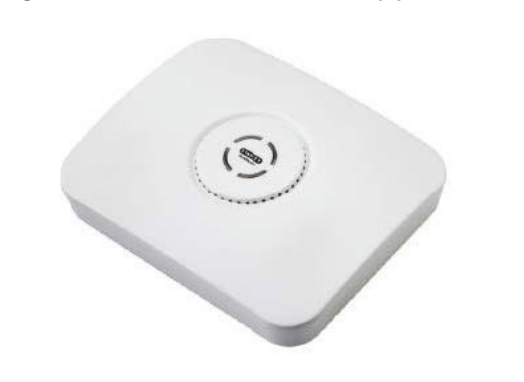
EX5500 Controllers and Non-Secured Exciters |
|
LF exit monitoring hardware that detects tagged infants at monitored exits |
430.04 and above |
1 per monitored exit/elevator bank |
Doorway RF controller for exit protection |
Securitas Healthcare Infrastructure Components
|
Component |
Function |
Version |
Hardware Requirements |
Notes |
|---|---|---|---|---|
|
AeroScout Location Engine Server |
Processes Wi-Fi tag telemetry and calculates real-time location, events, and alarms |
5.7 or higher (5.8.30 latest)
|
Provided as ova file, Ubuntu OS included, RAM – per memory allocation table, 200GB storage |
Provides real-time location updates to the MobileView Application |
|
AeroScout Location Engine Manager |
Provides centralized configuration, monitoring, and administration of one or more Location Engine Servers |
5.7 or higher (5.8.30 latest) |
Windows 10/11 Enterprise 64 bit Windows Server 2016/2019/2022/2025 Standard Intel Core i3+, 6GB RAM, 50GB storage |
Management interface for Engine Server |
|
MobileView Application |
Displays location, alarms, workflows, and reports for infant protection, staff safety, and asset tracking |
5.7 or higher |
Windows Server 2016/2019/2022/2025 (Data Center and Standard Edition) MS SQL Server: 2016, 2017, 2019, 2022 (Standard and Enterprise) RAM – per the deployment type |
Web application for monitoring and alerts |
PREREQUISITES
Cisco Spaces Prerequisites
-
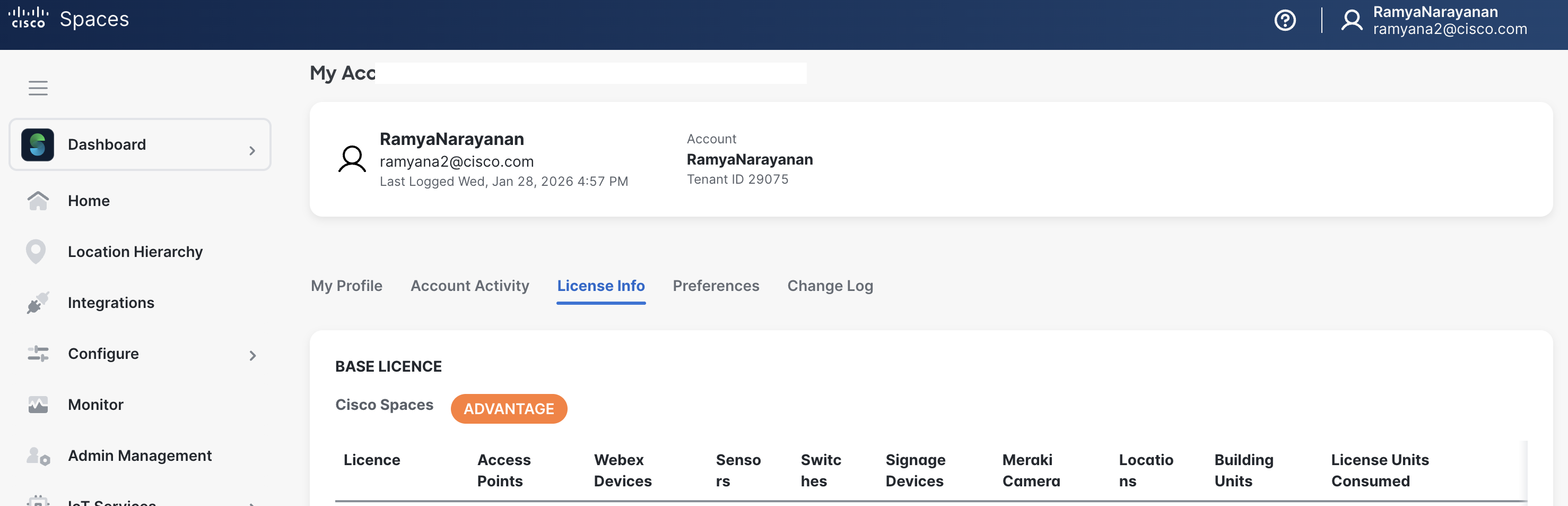
Cisco Spaces License
-
Minimum required license for this solution is Spaces Advantage (ACT)
-
To identify existing licenses - https://spaces.cisco.com/find-my-license/
-
Explore Packages - https://spaces.cisco.com/packages/#compare
-
-
Spaces OS configured and validated per https://runbooks.ciscospaces.io/docs/cisco-spaces-os-runbook-cisco-validated
-
Cisco Catalyst Center or Prime Infrastructure configured with accurate floor maps.
-
Local Firehose service added and enabled
-
Outbound HTTPS (443) connectivity to Cisco Spaces Cloud.
Securitas Healthcare Prerequisites
The links referenced in the section below point to Securitas Healthcare documentation and may require access credentials. Please request access to the Securitas Healthcare Knowledge Base here:
https://knowledgebase.securitashealthcare.com/
If you have an existing Securitas Infrastructure, it is recommended to verify with the Securitas support team that its current version is compatible with Cisco Spaces, as any necessary updates may require time and should be factored into project timelines and planning.
-
Review Securitas Healthcare Product Versions Compatibility Matrix Reference Guide for system compatibility and supported versions for AeroScout Location Engine (ALE) and MobileView.
-
Verify Network connectivity between AeroScout Location Engine, Spaces Connector, and Spaces.
REFERENCE ARCHITECTURE
HOW COMPONENTS INTERACT
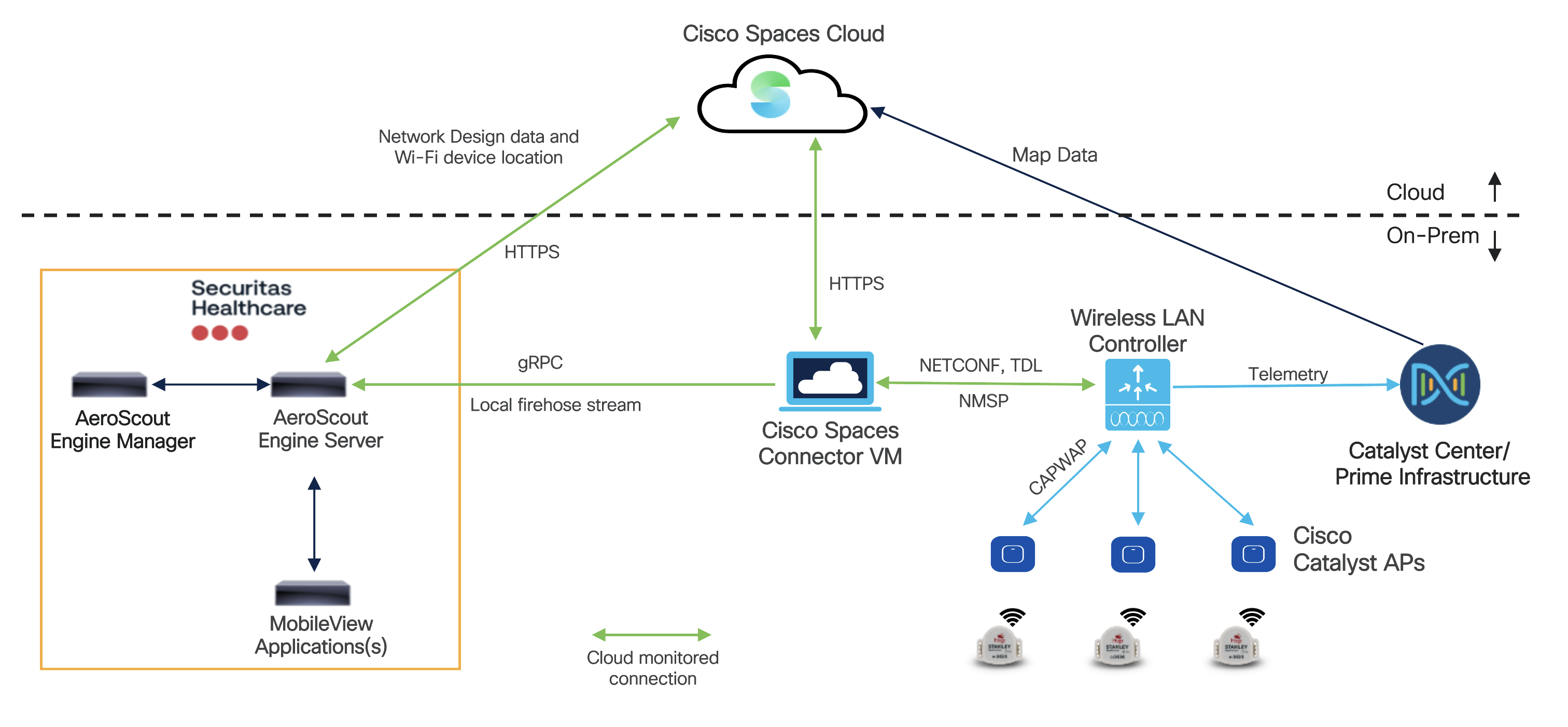
The integration between Cisco Spaces and Securitas Healthcare for RTLS, including Infant Protection, is orchestrated through data flow between various on-premises and cloud components. This flow ensures real-time location tracking and management, with considerations for High Availability to maintain continuous operation.
-
Once the Hugs tags are activated, Securitas Healthcare HUGS Tags (Wi-Fi) attached to infants or patients transmit periodic 802.11 compliant (2.4GHz) beacon messages.
-
Data Collection by Cisco Infrastructure
-
Cisco Catalyst Access Points (APs), specifically their 2.4 GHz radios, detect these tag signals and collect the Wi-Fi and Tag MAC Address and raw RSSI information.
-
The APs forward this raw MAC/RSSI information to the Wireless LAN Controller (WLC) (AireOS or Catalyst 9800) over CAPWAP.
-
Cisco FRA Implications - Cisco's FRA feature optimizes general Wi-Fi networks by dynamically reassigning AP 2.4 GHz radios (e.g., to 5 GHz or monitor mode) to reduce interference. However, this directly conflicts with mission-critical RTLS applications like infant monitoring, which rely on consistent and dedicated 2.4 GHz listening by multiple APs to accurately track Wi-Fi RFID tags. To ensure high-fidelity location tracking for infant protection, it is essential to disable FRA on APs serving the RTLS use case. This guarantees their 2.4 GHz radios remain in client-serving mode, providing the consistent tag message capture necessary for accurate RTLS.
For more details on FRA:
-
-
Data Processing by Cisco Spaces Connector (with HA)
-
The WLC sends this information to the Cisco Spaces Connector VM (on-premises) over NMSP. If FastLocate/Hyperlocation is enabled, RSSI information can also be sent over FASTPath.
-
The Cisco Spaces Connector VM performs two key actions
-
It sends Wi-Fi client and Tag MAC / RSSI information to the Cisco Spaces Cloud over HTTPS.
-
It also sends Wi-Fi Client RSSI (Associated), Wi-Fi Client MAC address (Associated) to the AeroScout Engine Server via a gRPC Local Firehose stream.
-
-
High Availability (HA) for Cisco Spaces Connector: For resilience, it is recommended to deploy two Cisco Spaces Connector virtual machines as a VIP pair. While Active/Active HA is supported, deploying a VIP pair is strongly recommended for Securitas Healthcare deployments, particularly where BLE tag tracking may be required in the future. Migrating from Active/Active to a VIP pair at a later stage requires a Securitas maintenance window; deploying a VIP pair initially avoids future service disruption.
-
-
Location Calculation
-
The AeroScout Engine Server (on-premise) receives both the location information and map data from the Cisco Spaces Cloud.
-
It processes this combined information to calculate the precise X/Y location for all Hugs Wi-Fi tags.
-
-
Management and Application Layer
-
The AeroScout Engine Manager (on-premises) is responsible for the centralized administration and configuration of the AeroScout Engine Server, including importing site maps from Spaces and managing the integration.
-
The MobileView Application (on-premises) receives real-time location updates and positions for tags from the AeroScout Engine Server. This application provide the end-user interface for Infant Protection, allowing staff to monitor tag locations on maps, set up alerts, and manage workflows.
-
This integrated data flow, enhanced with High Availability for critical components like the Cisco Spaces Connector, ensures that the location of infants can be accurately tracked and monitored in real-time with minimal disruption, enabling robust Infant Protection functionalities within the healthcare environment.
INSTALLATION AND CONFIGURATION STEPS
Cisco Spaces Configuration Steps
-
Confirm that the Cisco Spaces license is active
-
Login to your Spaces account and navigate to My Account section.
-
Navigate to License Information section to verify status.
-
-
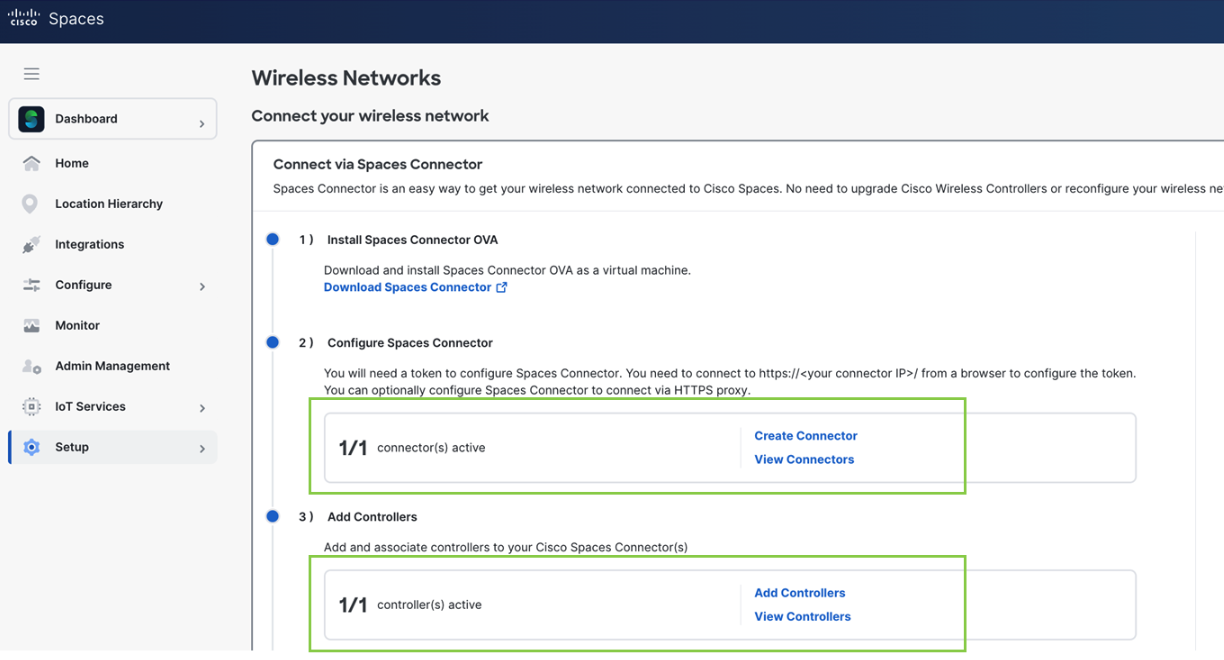
Follow the OS Runbook to install Spaces Connector on VM and add Catalyst WLC
-
Confirm that the Cisco Spaces Connector and Catalyst Controller are active.
-
-
Cisco Catalyst Center or Prime Infrastructure Floor Maps Configuration
-
Log in to Cisco Catalyst Center or Prime Infrastructure web interface.
-
Navigate to Design > Network Hierarchy (Catalyst Center) or Maps > Site Maps (Prime Infrastructure) and select your building.
-
Add or edit floors with accurate details including floor name, floor number, floor type, and floor height (typically 10-12 feet).
-
Upload floor map files using CAD (.dwg, .dxf preferred) or image formats (.png, .jpg, .pdf)
-
Set map scale and dimensions by entering actual building length and width, or use the span-and-measure tool to click two known points and enter the actual distance - this is critical for location accuracy.
-
Define RF attenuation by marking walls, obstacles, and materials (thick walls, regular walls, glass, doors) to improve location accuracy.
-
Place Access Points on the map at their exact physical mounting locations and assign to correct floors.
-
Add GPS markers (minimum 3-4 markers, at least 20 meters apart) for proper geo-alignment.
-
Verify synchronization by logging into Cisco Spaces and navigating to Setup > Locations & Maps to confirm all floors, maps, and APs appear correctly.
Reference Documentation
-
-
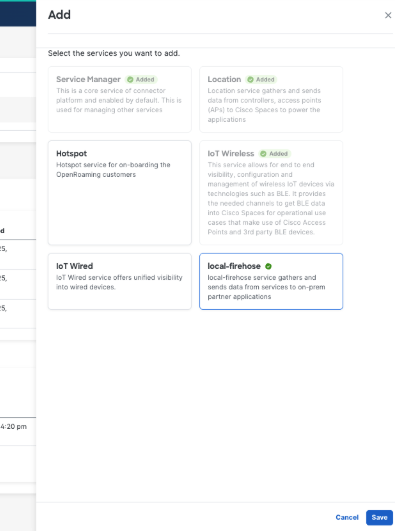
Add Local Firehose service within the connector.
-
Navigate to Setup -> Wireless Networks and click on View connectors.
-
Select the connector and under Instances, click on Add Services.

-
Select local-firehose and click on Save.
-
-
Activate Securitas Healthcare RTLS Partner App
-
Navigate to the Partner Apps tab within the Spaces Dashboard
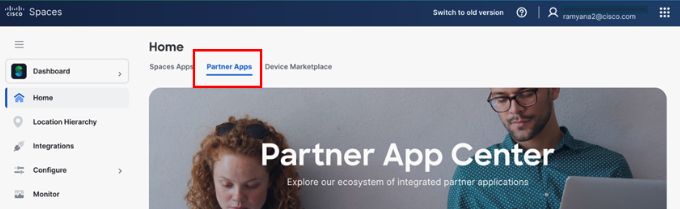
-
Click on Apps by Healthcare and Search for Securitas and click on the app tile. The app details should show up in a window to the right.
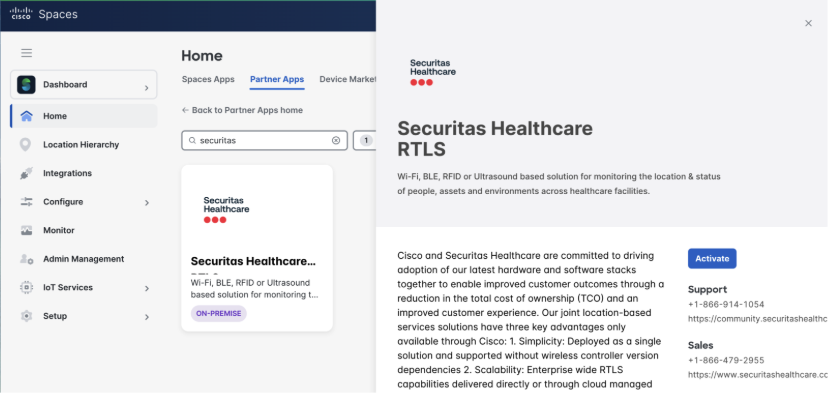
-
Click on Activate to start the activation process.
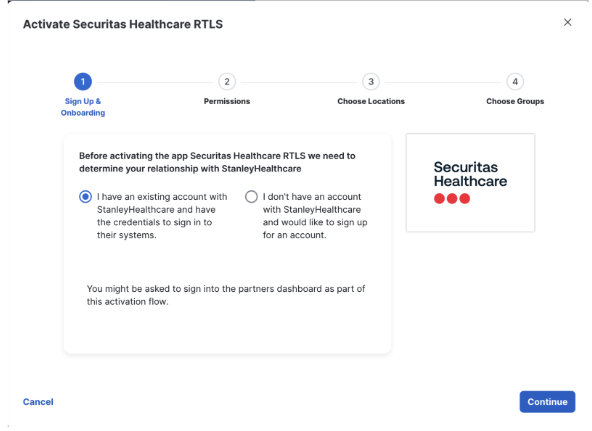
-
Review the permissions needed to activate the app and click on Grant Permission.
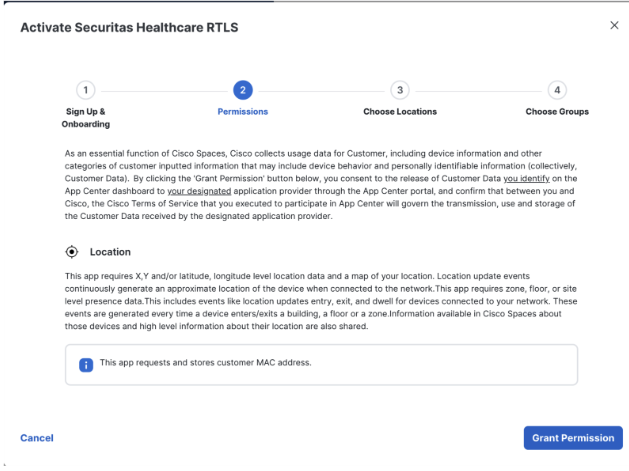
-
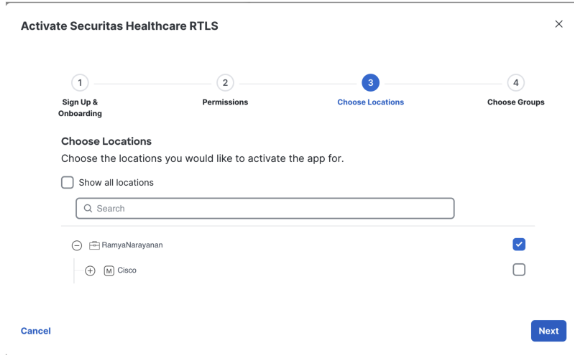
Select all the locations and click on Next
-
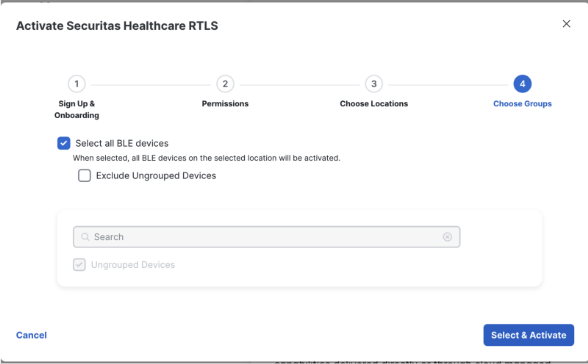
Select all BLE devices and click on Select & Activate.
-
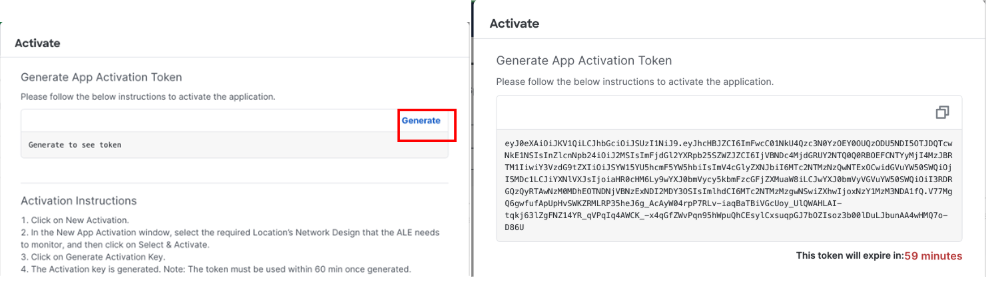
Generate the activation key and copy it into a location for retrieval. The App is now activated within your Spaces Instance.
-
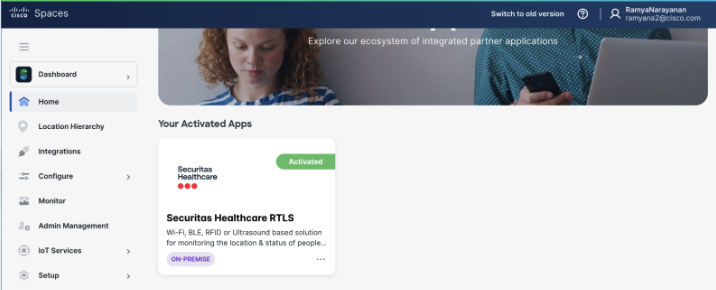
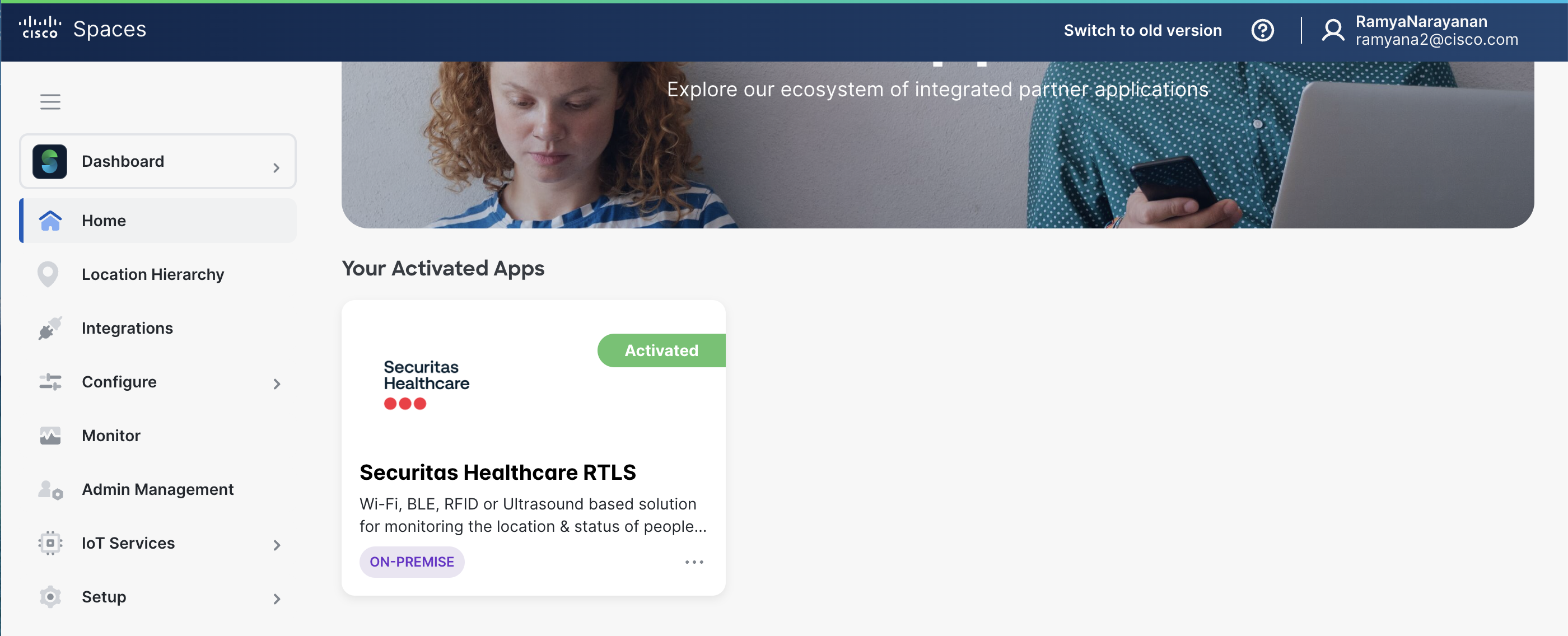
Navigate to Partner Apps tab on the dashboard and under Your Activated Apps section, verify if Securitas Healthcare RTLS app is visible.
-
Securitas Healthcare Installation Steps
-
Deploy and Configure AeroScout Location Engine which consists of Engine Server (AES) and Engine Manager (AEM)
For detailed deployment steps, refer to the AeroScout Location Engine 5.8.x Deployment and User Guide-
Login to the AeroScout Location Engine
-
Navigate to Configuration-> Server parameters -> System Parameters
-
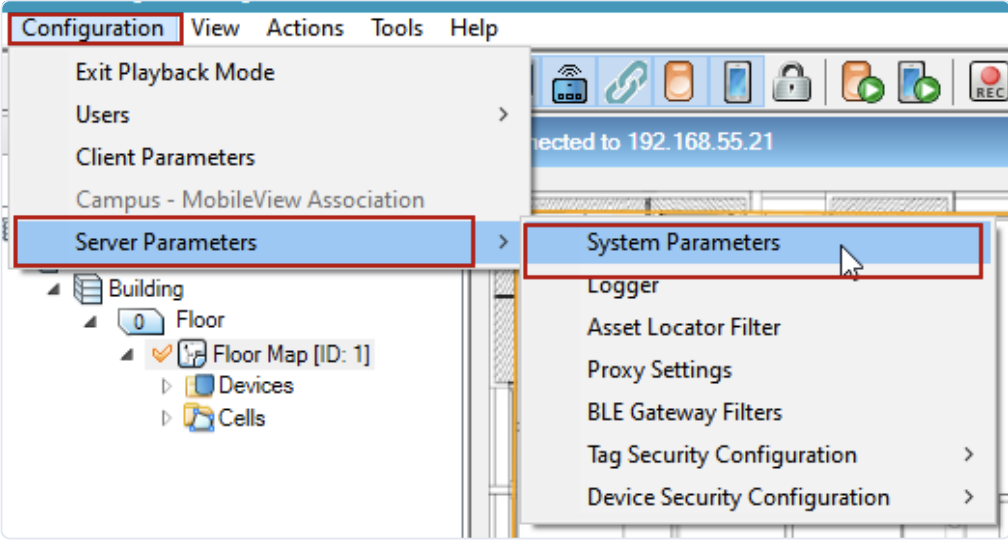
c. On the System Parameters window, select the Cisco tab

d. Under Cisco Parameters section, select Cisco Spaces and Click on Load token

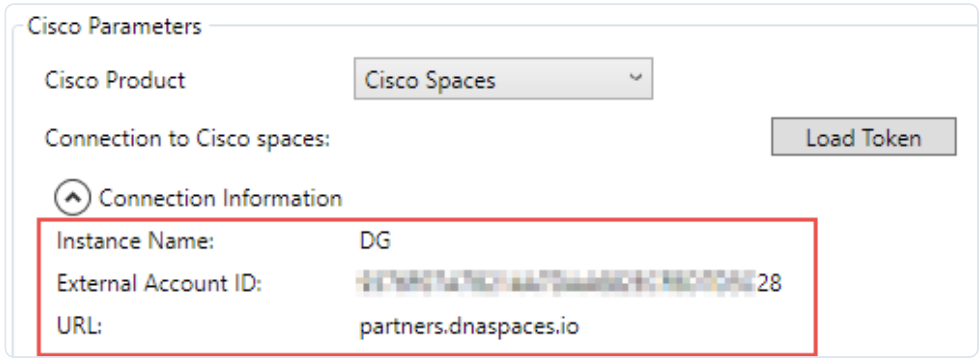
e. In the Load Token dialog, enter in an Instance Name. The Instance Name should be a name that describes the Activation. For example, ‘River Campus’ or ‘University of xxx’. The Instance Name is added to the Activation information in Cisco Spaces after the Token Activation process.
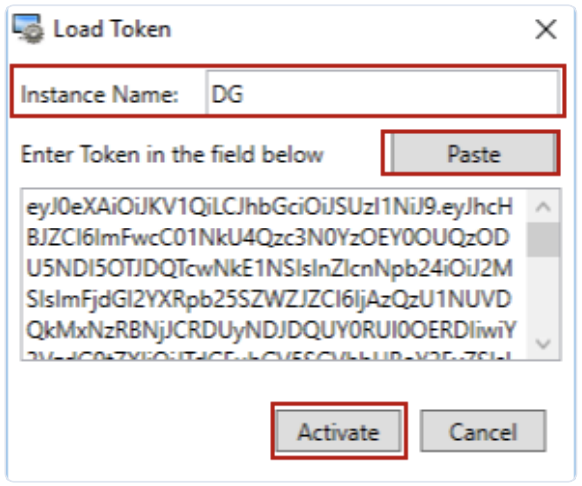
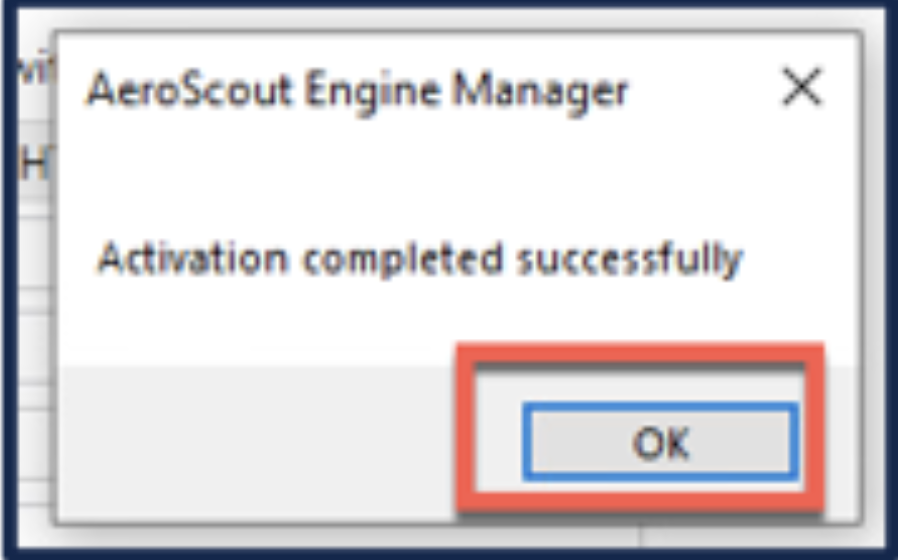
f. Paste the activation token copied from the Securitas Healthcare RTLS app activation process and click on Activate.
g. View the Connection Information by clicking on the down arrow
h. Enter the Host Name / IP Address of the Primary Connector.
Note:
For HA, enter the Host Name / IP Address of the Second Connector, which cannot be the same as the Primary Connector.
For HA VIP Paired (recommended), enter the Virtual IP address in Primary Connector.
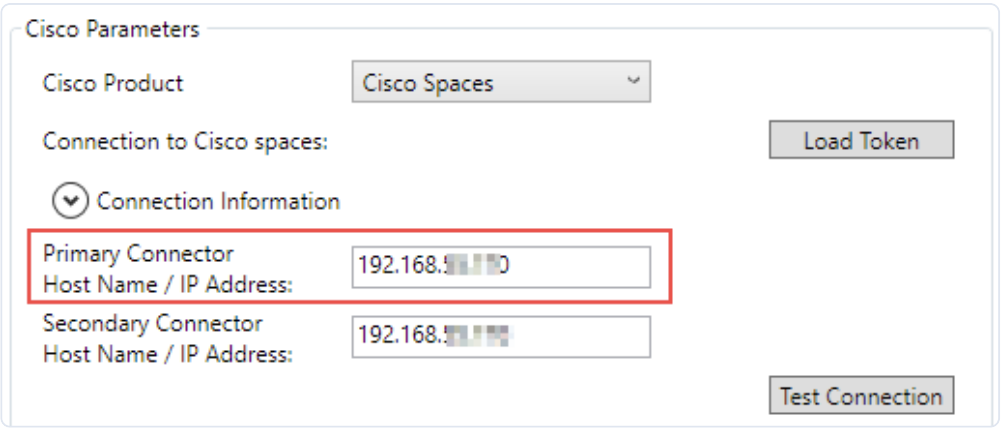
i. Click on Test Connection to verify if the systems can connect. If a Secondary Connector is defined, its connection will also be tested.
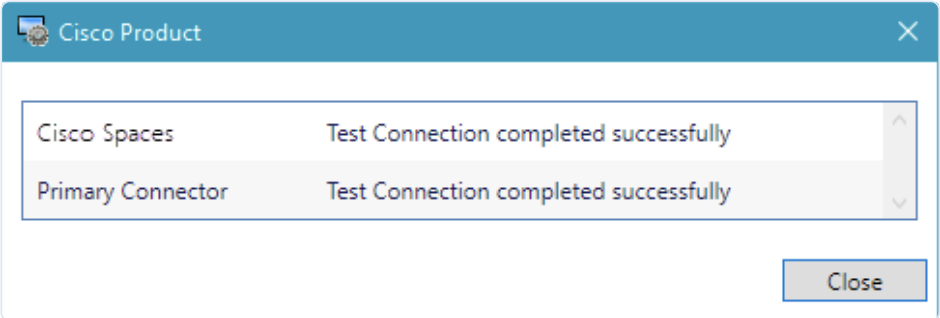
j. Click on Close. Click OK to save and close the System Parameters.
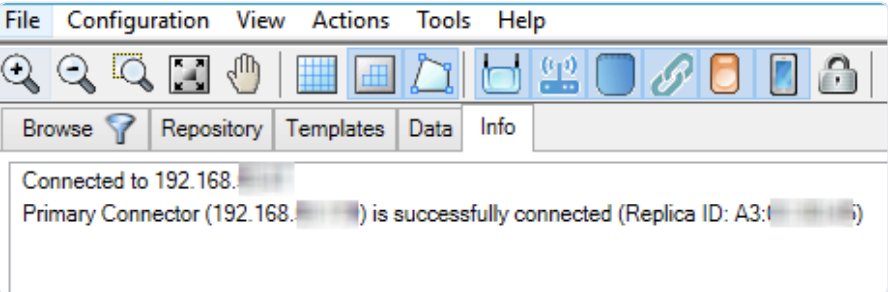
h. The Info tab will show the current status of the ALE communication between the Connector and Cisco Spaces.
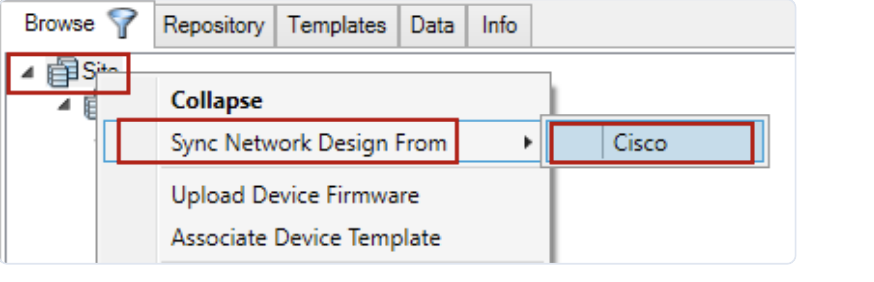
k. Sync the network design by right-clicking on Site and selecting Sync Network Design From > Cisco
-
Deploy and Configure MobileView Application
For detailed deployment steps, refer to the MobileView 5.8.x Install and Upgrade Guide -
Connect AeroScout to MobileView
For detailed deployment steps, refer to the AeroScout Location Engine 5.8.x Deployment and User Guide-
To connect multiple MobileView clients to a single Engine Server, MobileView clients are connected by associating them to campuses. Campus association is only allowed for Admin users.
-
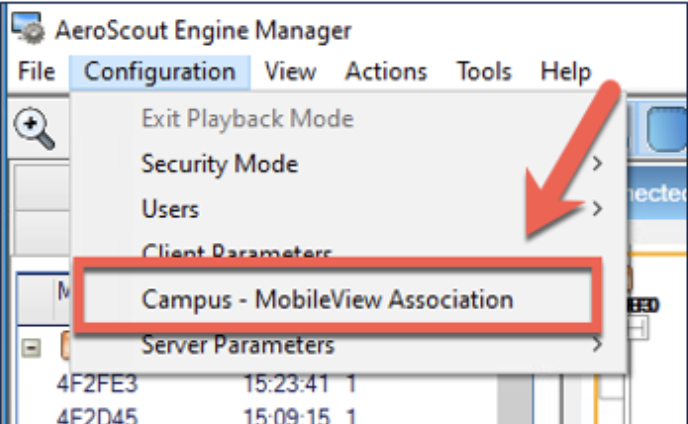
Under the General Tab, check Allow Multiple MobileView sites association with Engine Campuses
-
This will enable the Campus – MobileView Association Option under Configuration.
-
-
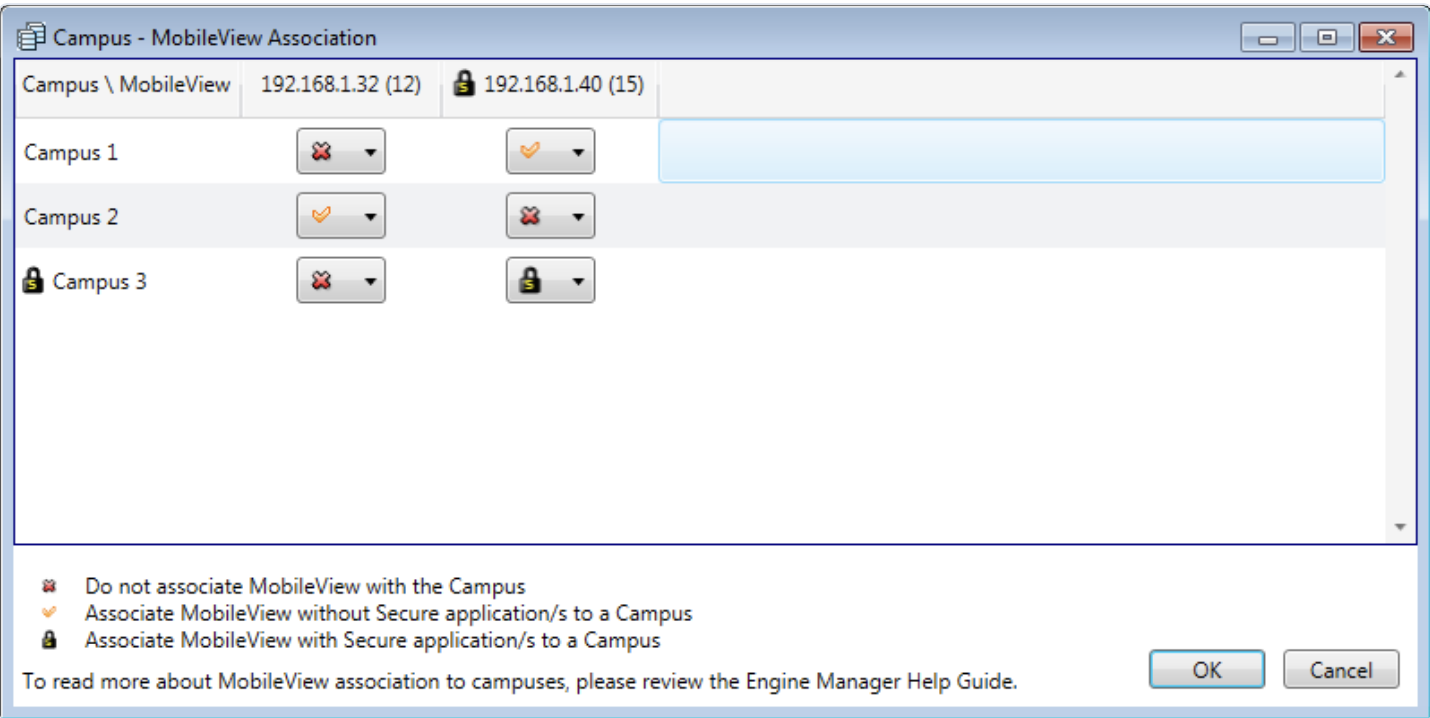
MobileView Servers are added automatically after setting a gateway connection to the Location Engine Server
-
Associate each MobileView Server (by IP address) with relevant campuses
-
Each campus will send tag location reports only to its associated MobileView clients.
-
Confirm MobileView Servers show as online (offline servers display as 'Offline'). Secured MobileView environments are indicated with a lock icon
-
-
Install Hugs on Mobileview Application
-
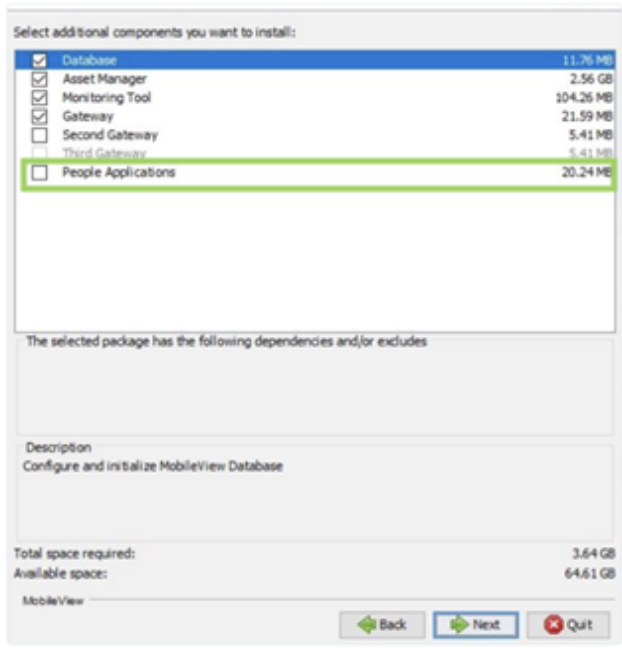
The MobileView unified installer includes the MobileView platform and all applications. Hugs can be installed during the installation or after. Select People Applications and click Next.
-
Select the size option relevant to the expected site size. For further information refer to the MobileView Hardware Sizing Calculator. Click Next. The Environment Verification Results window opens showing the verification results. Click Next.
-
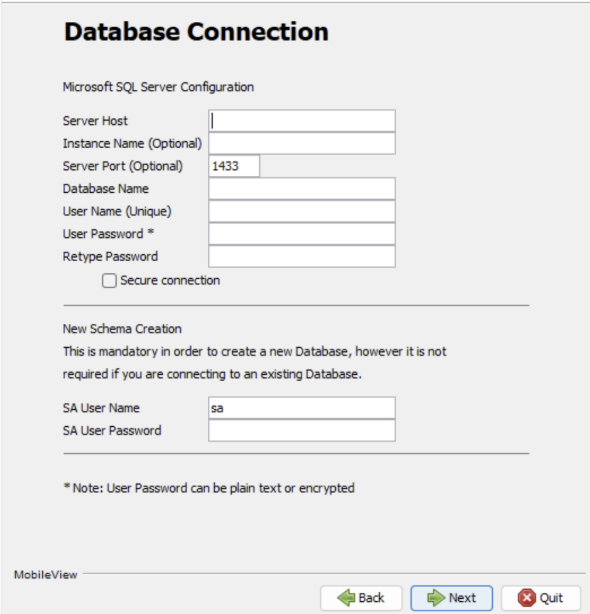
The Database Connection window opens. Connect to the SQL Server VM.
-
Configure the Application Server, Password Security and Gateway Connection parameters and complete the installation.
-
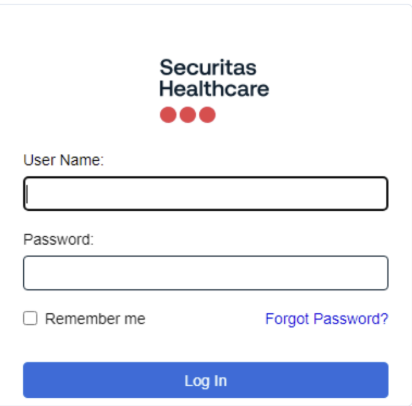
Open your Web browser and connect to MobileView’s URL. For example: http://[MV_SERVER_IP]/asset-manager-web/
-
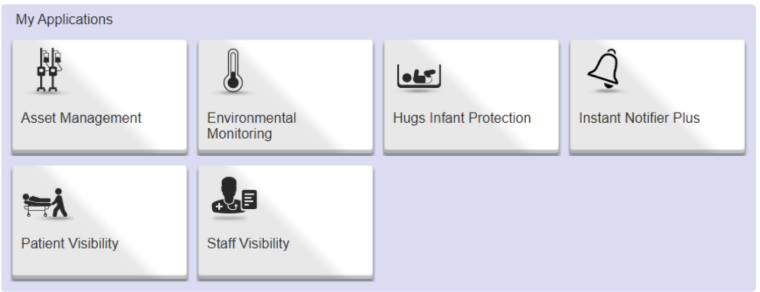
Enter your User Name and Password and login to the application.
-
Hugs user guide provides instructions on how to use all aspects and features of Hugs on MobileView application software.
-
Setup Instant Notifier (Alerts) in the MobileView application. The user guide for detailed steps on how to setup alerts.
-
INTEGRATION VALIDATION CHECKLIST
- Validate that required ports (HTTPS 443, gRPC, and NMSP) are open between WLC, Connector, and AeroScout Engine.
- Confirm Securitas Healthcare RTLS Partner App has been activated in the Cisco Spaces Dashboard
- Navigate to Partner Apps tab on the dashboard and under Your Activated Apps section, verify if Securitas Healthcare RTLS app is visible.
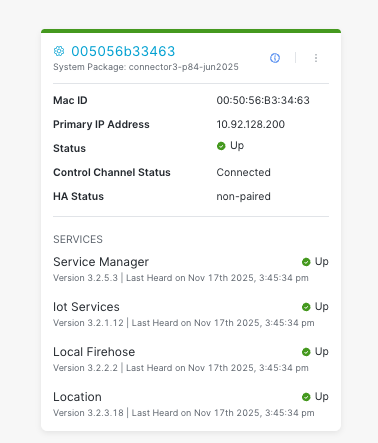
- Verify Local Firehose stream is active in Spaces Connector UI.
- Navigate to Setup -> Wireless Networks and click on View connectors.
- Select the connector and under Instances, verify the last heard date and time on the Local Firehose.
- Verify that location hierarchy is consistent across Cisco Spaces, Location Engine, and MobileView.
- Verify all Hugs tags visible in Cisco Spaces Detect & Locate
- Navigate to Detect and Locate on the Dashboard
- Select the building and floor where the devices are placed
- The TAG section should display the number of tags on the floor
- Click on the tag that shows up on the Map to see the information of the tag
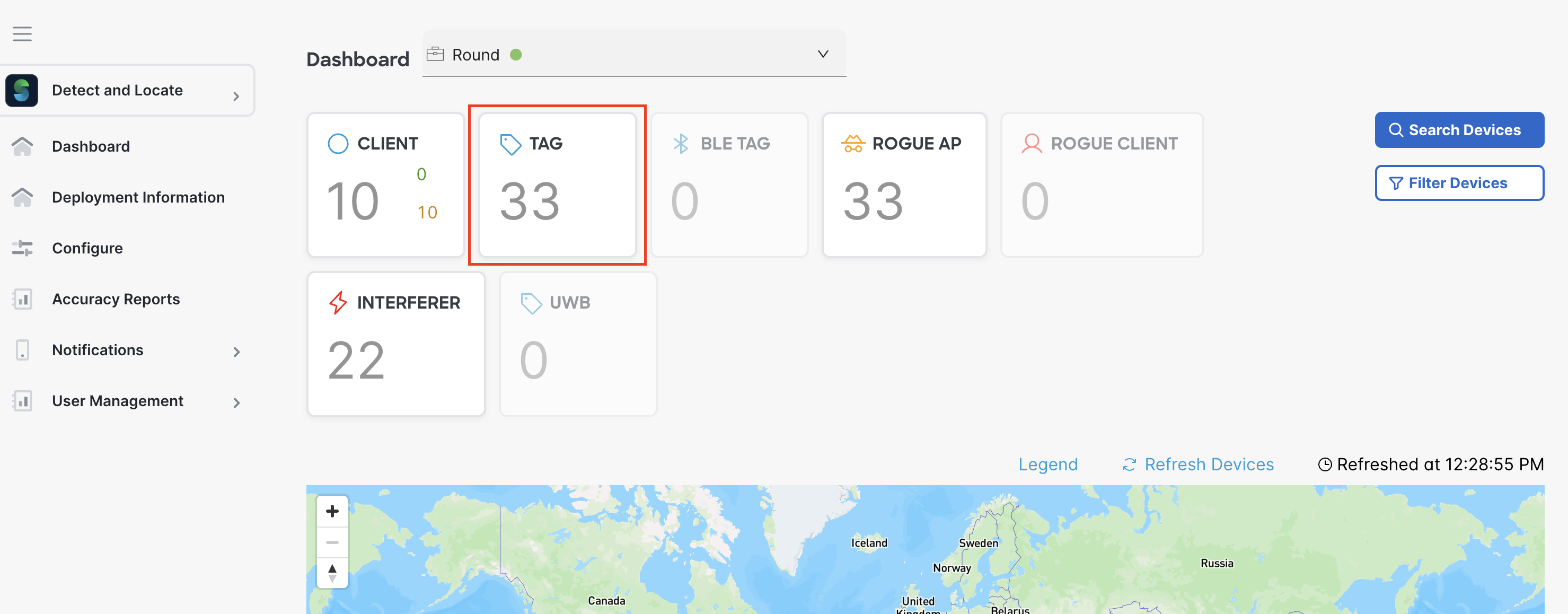
- Verify all Tags are visible in Securitas Healthcare MobileView Application.
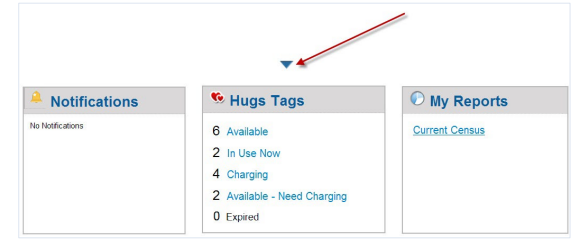
- On the Hugs homepage, review the "Available," "In Use Now," "Charging," "Available - Need Charging," and "Expired" counts. Click to see lists.
- Confirm admitted infants and their tag IDs are visible. Look for "expired tag" icons.
- Click on the links under the Hugs Tags section to get more information on the tags. The In-use tags will give you more details on the Infant, the tag device details and location history.
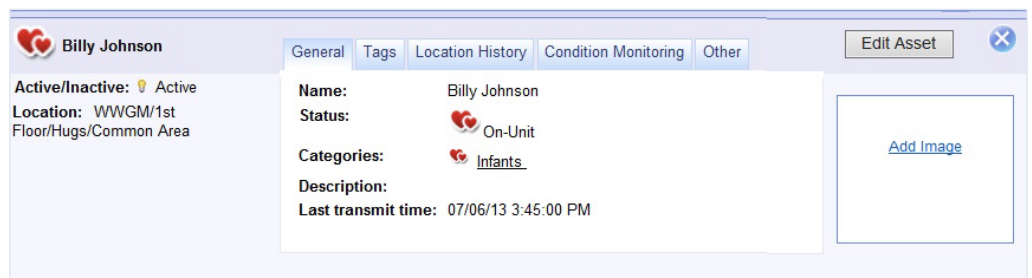
- To get a comprehensive list of all tags and their status, generate a Protected Tags Status Report. Click on the Reports Icons on the top, navigate to Instant Reports > Protected Tags Status, select the options and hit generate. This report generates a list of infants and shows their tag battery level and their current location.
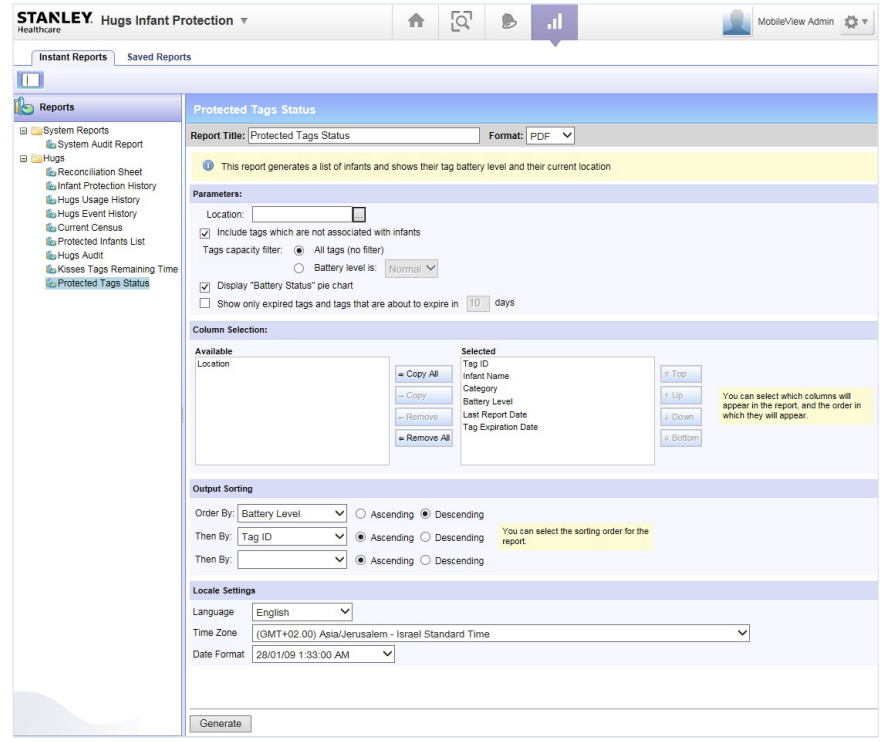
- Verify that alerts (Tamper, Exit, Out-of-Unit) are setup and trigger correctly in MobileView.
CAVEATS AND TIPS
Wi-Fi Coverage Dependency
Tag visibility and alert reliability depend on sufficient 2.4 GHz Wi-Fi coverage throughout the monitored area. Conduct coverage validation before enabling alerts.
Firewall Rules
Outbound connectivity from the Cisco Spaces Connector (ports 443 and NMSP) is mandatory for data flow to the Spaces Cloud and AeroScout Engine.
Map Consistency
Floor maps and naming conventions must be consistent across Cisco Spaces, AeroScout Engine, and MobileView to ensure correct geolocation mapping.
Clock Synchronization
All systems (WLC, Connector, Engine, and MobileView servers) should use the same NTP source to maintain log accuracy and event correlation.
High Availability
It is recommended to deploy two Cisco Spaces Connector virtual machines as a VIP pair. While Active/Active HA is supported, deploying a VIP pair is strongly recommended for Securitas Healthcare deployments, particularly where BLE tag tracking may be required in the future. Migrating from Active/Active to a VIP pair at a later stage requires a Securitas maintenance window; deploying a VIP pair initially avoids future service disruption.
MobileView Data Retention
Event and audit log retention policies should align with hospital compliance requirements (HIPAA or local equivalents).
RF Interference
Avoid installing Exit Controllers or APs near strong LF emitters or metallic surfaces that can distort field strength detection.
TROUBLESHOOTING GUIDE
This section provides a practical guide to diagnosing and resolving common issues that may arise during the deployment, configuration, or ongoing operation of the Cisco Spaces + Securitas Healthcare Infant Monitoring solution. It covers a range of potential problems, from connectivity and data flow to application performance and alert functionality. Before escalating an issue, it is highly recommended to review these troubleshooting steps and ensure all prerequisites and basic system health checks have been performed.
Hugs Tags are not visible in Cisco Spaces or MobileView Application
This often occurs due to the tag being out of Wi-Fi range, not powered on, not properly enrolled in the Securitas Healthcare system, or a break in the data flow path from the Access Points through the WLC and Cisco Spaces Connector to the AeroScout Engine.
-
Confirm the tag is powered on and actively within a known good Wi-Fi coverage area.
-
Verify the tag's enrollment and activation status directly within the Securitas Healthcare system.
-
Review Cisco Spaces Detect & Locate for the tag's visibility.
-
Confirm that the Cisco Spaces Connector is actively receiving data from the WLC and successfully forwarding it to the AeroScout Engine Server.
Real-time location updates are delayed or inconsistent
This usually points to network latency, congestion, or resource limitations on one of the processing components (WLC, Cisco Spaces Connector, AeroScout Engine). High CPU/memory utilization on these servers can lead to processing backlogs and delayed updates.
-
Observe if location updates are consistently slow or if tags occasionally exhibit jumping behavior on the map.
-
Investigate network latency and packet loss between all critical components, including Access Points, WLC, Cisco Spaces Connector, and the AeroScout Engine.
-
Review the resource utilization (CPU, RAM) on both the Cisco Spaces Connector and AeroScout Engine Server VMs. Consider allocating additional resources if they are consistently operating at high capacity to improve processing speed.
SUPPORT AND MONITORING
Joint Support Model
The Cisco Spaces Partner Ecosystem operates under a shared responsibility support model, ensuring issues are routed quickly to the team best positioned to resolve them.
|
Responsibility Area |
Primary Owner |
|
Cisco Spaces Platform, APIs, Network Integration |
Cisco Spaces Partner Team |
|
AeroScout / MobileView |
Securitas Healthcare Team |
|
Joint Use Case Runbook Creation & Maintenance |
Cisco Spaces Partner Team + Securitas Healthcare Team |
|
Cisco Space Partner App Validation, Listing, Marketplace Onboarding |
Cisco Spaces Partner Team |
Support Workflow
The workflow for identifying, triaging, and resolving issues follows a structured path designed to ensure accountability, consistency, and efficiency across Cisco Spaces and Partner teams.
Issue Identification (Customer Initiated)
An issue is detected in a Cisco Spaces–integrated deployment, such as:
-
Location or telemetry data not visible in Cisco Spaces
-
AeroScout/MobileView devices not appearing or updating
-
Deployment, onboarding, or integration errors
-
Unexpected application behavior or UI issues
The reporting party should capture:
-
Time and date of occurrence
-
Error messages or screenshots
-
Affected sites, devices, or users
-
Recent changes (network, configuration, upgrades)
-
Business or clinical impact
Triage (Primary Determination of Ownership)
During triage, the issue is evaluated to determine its point of origin within the Cisco Spaces platform, partner application, or integration layer.
Using the responsibility tables defined above:
-
Ownership is identified
-
The appropriate Cisco Spaces or partner support teams are notified
This Runbook serves as the primary troubleshooting reference during this phase, helping to:
-
Match observed symptoms to known issues and common failure scenarios
-
Validate configuration and data flow expectations
-
Determine whether the issue can be resolved through documented steps or requires deeper technical investigation and escalation
This structured triage process ensures issues are routed correctly, reduces duplication of effort, and accelerates resolution.
Primary Support Routing
For issues suspected to originate within Cisco Spaces:
-
Open a Cisco TAC case
-
Cisco TAC manages the case end-to-end and coordinates internally with the Cisco Spaces Partner Team as needed
Steps to Open a Cisco TAC Case
-
Log in to Cisco Support: https://www.cisco.com/support
-
Select Open a Case
-
Choose the relevant Cisco Spaces product or service
-
Provide:
-
Detailed problem description
-
Logs, screenshots, and timestamps
-
Customer site and Spaces instance details
-
Confirmation that runbook troubleshooting steps were completed
-
-
Submit the case and record the TAC case number for tracking
Securitas Healthcare Support
For issues related to AeroScout or MobileView applications, tags, or clinical workflows, Securitas Healthcare is the first point of contact.
Technical Support – Securitas Healthcare
-
Toll Free: +1-866-730-1620
-
Direct: +1-866-731-8328
-
Website: https://www.securitashealthcare.com/infant-protection-lp
The Securitas Healthcare support team will:
-
Triage application-level issues
-
Request logs or diagnostics as needed
-
Engage Cisco Spaces Partner Team if integration-level assistance is required
Resolution and Closure
Once the issue is resolved:
-
The owning team validates the fix with the reporting party
-
Root cause analysis, corrective actions, and preventive guidance are documented
-
Any new learnings, configuration updates, or escalation paths are incorporated into the runbook
This creates a continuous feedback loop, improving future deployments and reducing mean time to resolution.
FREQUENTLY ASKED QUESTIONS (FAQ)
Can I use Cisco Meraki Access Points for this solution?
This solution requires Cisco Catalyst (or Aironet legacy) Access Points managed by a Catalyst WLC. Meraki APs are not supported for this specific HUGS integration.
How much bandwidth is consumed between the on-premises environment and Cisco Spaces Cloud?
Average bandwidth consumption is approximately 1 Kbps per Access Point, sustained. Actual usage may vary slightly based on AP count, telemetry frequency, and enabled services.
Does the system continue to function if connectivity to the cloud is lost?
Yes. Tag telemetry ingestion and real-time location processing for critical use cases continue locally. However, management operations—such as map updates, configuration changes, and cloud-based analytics—are suspended until connectivity is restored. During this time, associated devices will not appear in the MobileView application.
REFERENCES
FEEDBACK AND CONTINUOUS IMPROVEMENT
This runbook is a living document that evolves based on real-world deployments and customer feedback. Your input helps us improve accuracy, clarity, and completeness of the runbook.
Submit Feedback: Runbook Feedback Form
Email: ciscospacespartnerteam@cisco.com
For technical support issues, please follow the Support and Escalation Process outlined in this document.